
Get an API key
Make an integration in GeotechOS, Settings › API keys, and copy its key. The key is shown once; GeotechOS keeps only its hash.
Applies toWeb browser
An API key lets one piece of software write into your GeotechOS workspace. You make one integration for each system that connects, for example your website, your CRM or an AI agent.
Before you start
- You need a GeotechOS administrator account. Only an administrator sees Settings › API keys.
- Choose the account that the key acts as. The key can do only what that account can do. Many teams make a separate account for this, for example "Website integration", so the key keeps working when a person leaves.
Make an integration
-
Sign in to GeotechOS in a web browser.
-
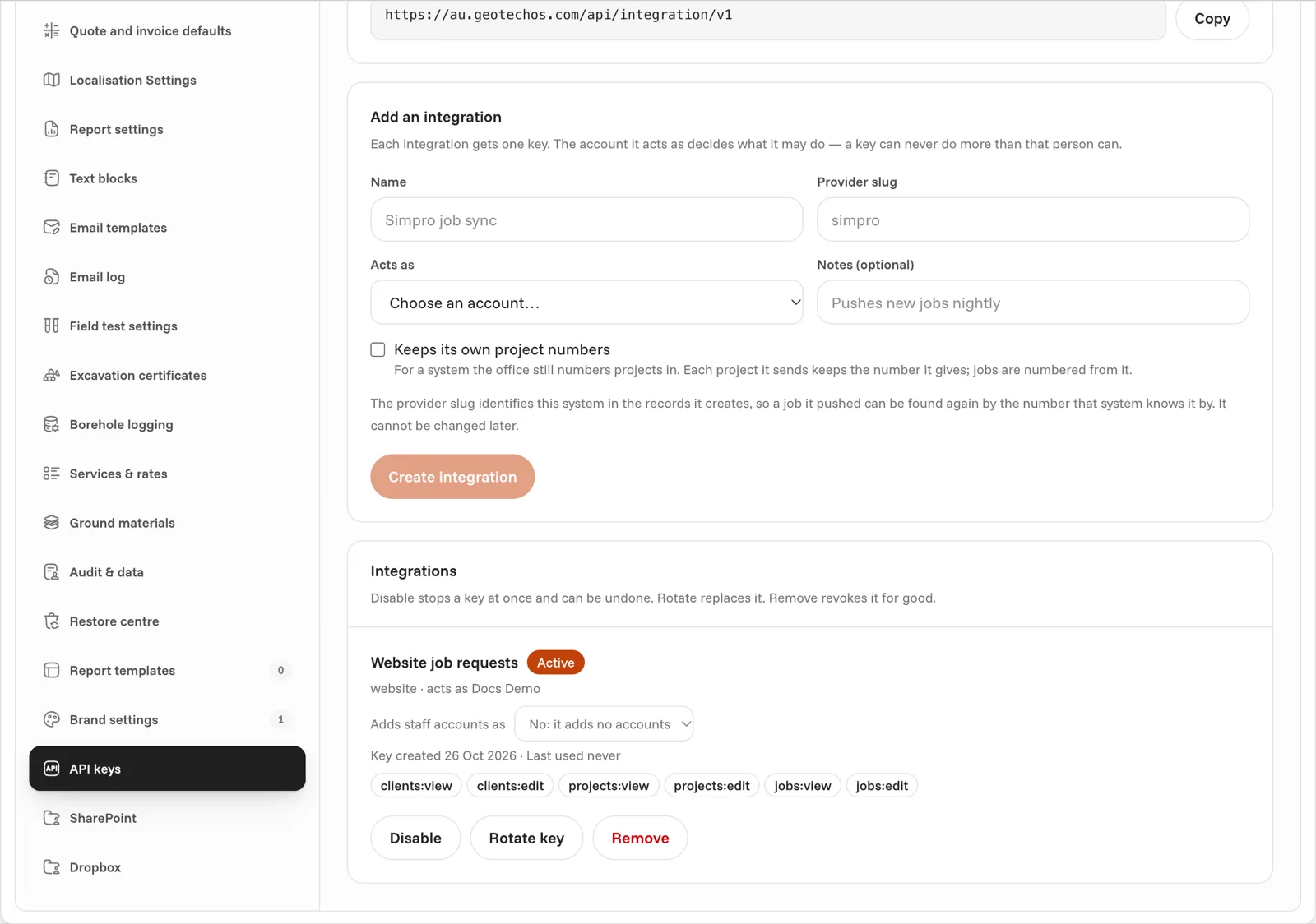
Click Settings, then API keys.
-
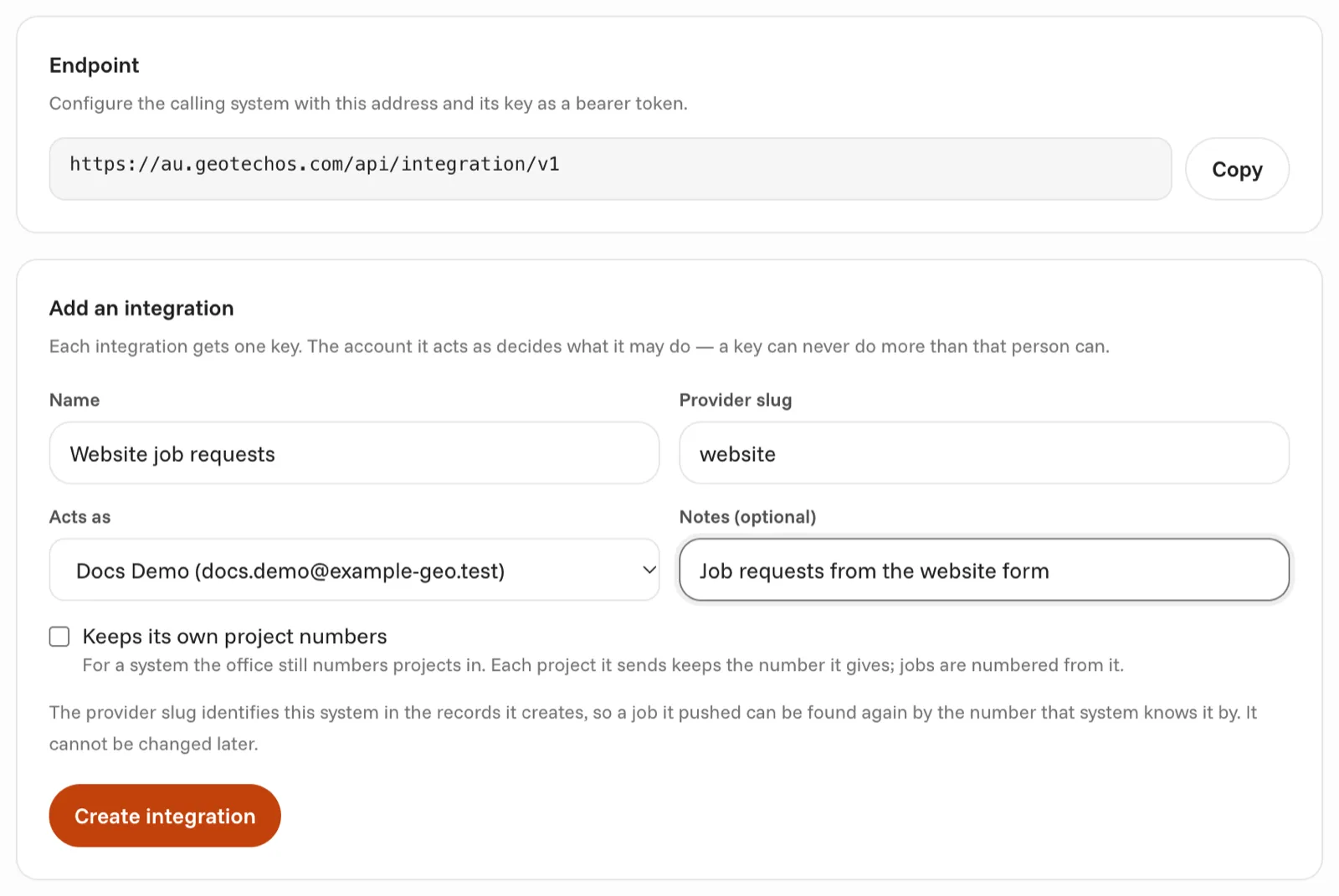
Under Add an integration, type a Name. Use a name that tells people what the system is, for example Website job requests.
-
Type a Provider slug. This is a short name for your system, for example
website. You cannot change it later, because every id that the system sends is stored under it. -
In Acts as, select the account that the key acts as.
-
If you want, type Notes about what the integration does.
-
If your system gives projects their numbers, select Keeps its own project numbers. See Projects.
-
Click Create integration.
Copy the key
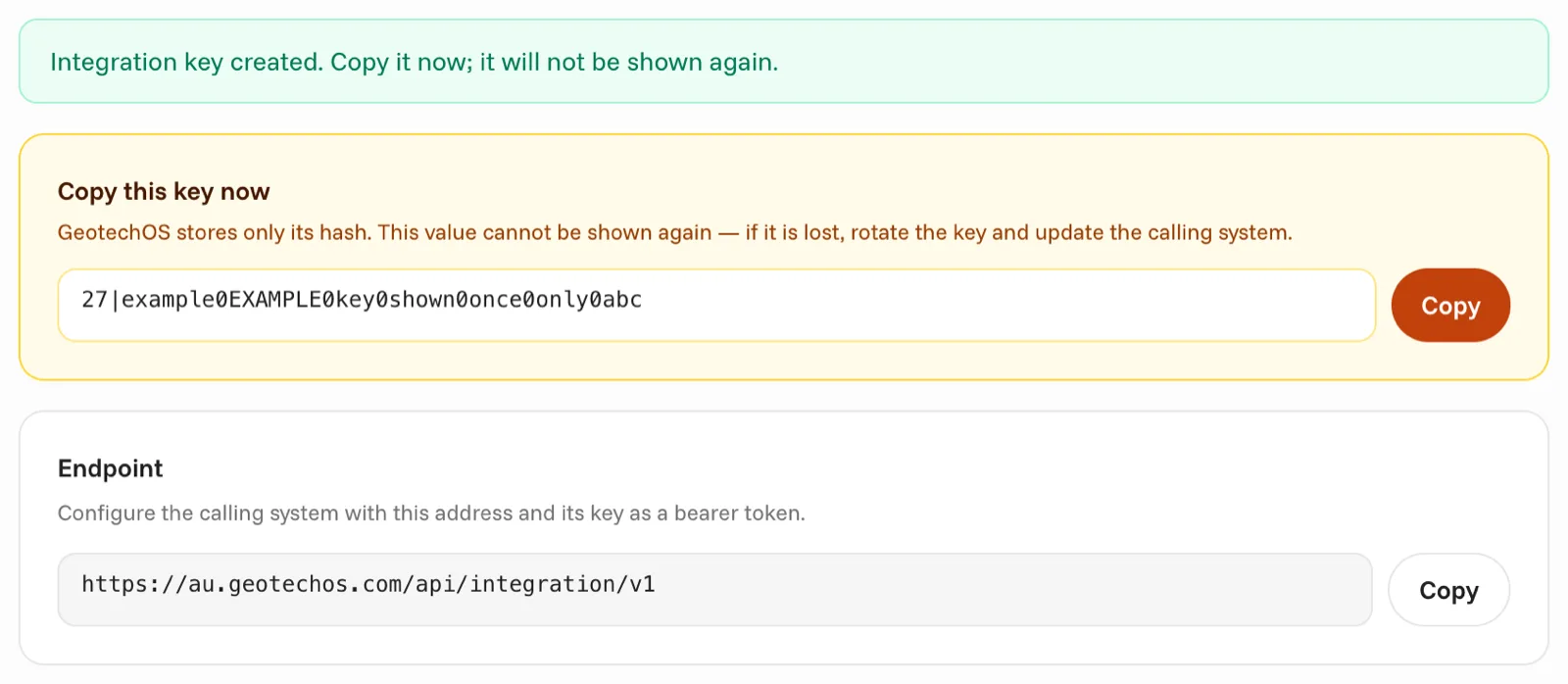
GeotechOS shows the key once, in Copy this key now.
Caution: Copy the key before you leave the page. GeotechOS stores only a hash of the key. It cannot show the key again.
- Click Copy next to the key.
- Put the key in your system's secret store, for example an environment variable such as
GEOTECHOS_API_KEY.
Do not put the key in source code, in a web page or in a mobile app. Anyone who has the key can write into your workspace.
Endpoint shows the address your system calls. Copy it too.
Manage a key
The integration shows in the Integrations list, with the abilities of its key and when it was last used.
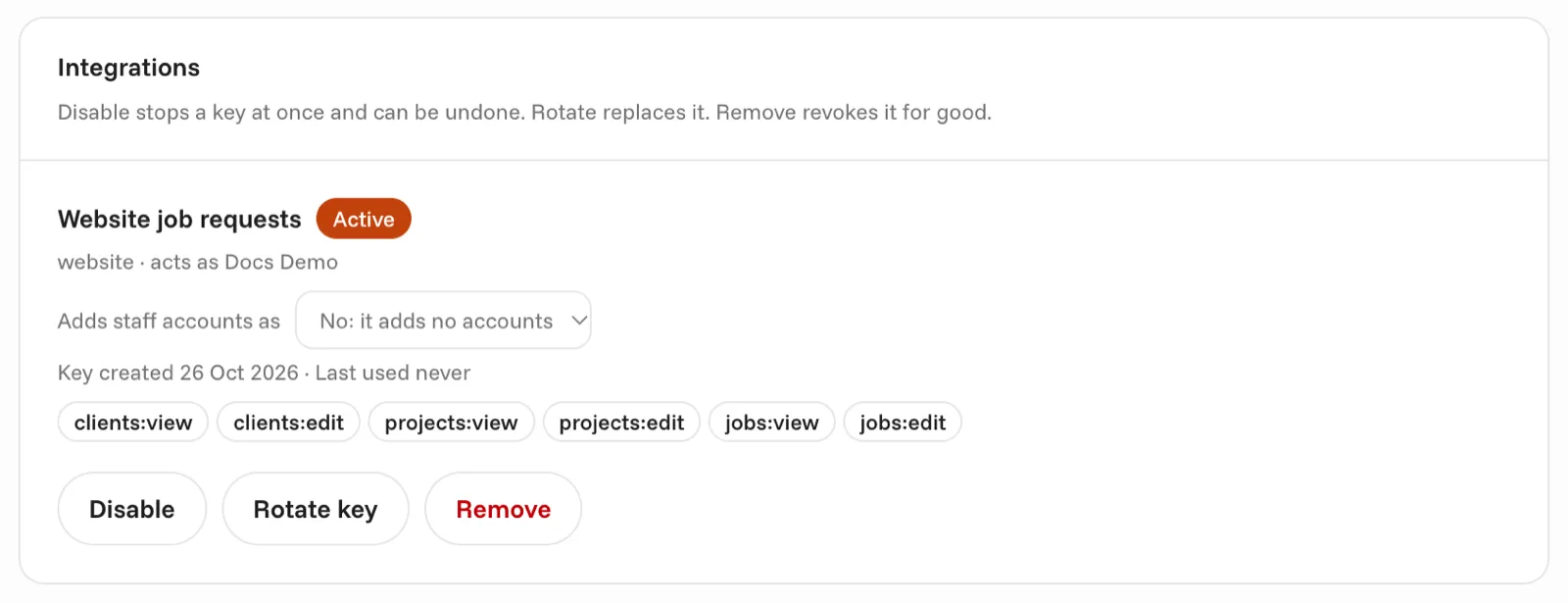
- Disable stops the key at once. Click Enable to start it again.
- Rotate key makes a new key and stops the old one at once. Put the new key in your system.
- Remove stops the key for good.
- Adds staff accounts as lets the integration make staff accounts with the role you select. See Staff accounts.
If the key is lost or someone sees it, rotate it.