
Add a borehole or a test pit
Add boreholes and test pits to a project in Borehole Logging. Type the identifier and final depth, add many holes from the holes table, or replicate a hole.
Applies toWindows and macOSWeb browser
Each borehole and test pit is a hole in an investigation. This page tells you how to add one hole, many holes at a time, or copies of a hole.
Before you start
Create the project. See Create a project.
Add one hole
- In the project tree, click the investigation.
- Click Insert › New borehole. For a test pit, click Insert › New test pit.
- In Identifier, type the identifier as it must print, for example BH04. Borehole Logging suggests the next identifier.
- In Final depth (m), type the final depth, for example 12.00. If the hole is not drilled yet, leave it empty.
- Optional: next to Started, click Set… and select the date.
- Click Add borehole (or Add test pit).
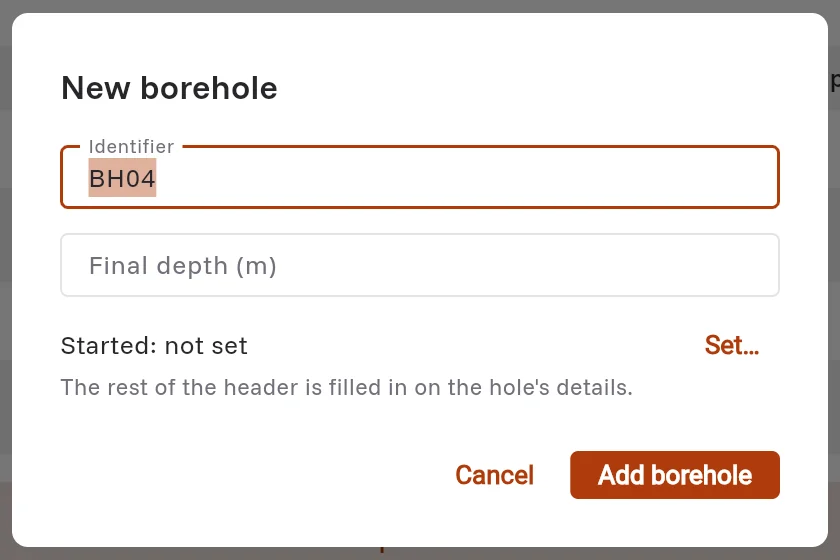
Borehole Logging adds the hole to the project tree and opens its details. Fill in the rest of the details there. See The hole details.
Tip: On the project details page, you can also click New borehole or New test pit.
Add many holes from the holes table
Use the holes table to type or paste many holes at one time, for example from a drilling plan in Excel.
- Click Data › Holes table, or press Ctrl+Shift+H.
- In the empty row at the bottom, type the ID, the Type, the Depth and the other values. Press Tab to go to the next column. Press Enter to go to the next row.
- To paste from Excel, copy the cells in Excel. Then click a cell in the holes table and press Ctrl+V. If the first row has column names, Borehole Logging matches the columns by name and shows a preview first.
The columns marked with * are necessary: ID, Type and Depth.
Make copies of a hole
Replicate a hole to make new holes with the same header, for example the same drilling contractor and method. Borehole Logging does not copy the records, the position, the depth, the dates or the groundwater.
- Open the hole that you want to copy.
- Click Hole › Replicate.
- In New holes, type the identifiers. Use commas or new lines between them. For a range, type BH02-BH10.
- Optional: select Same planned depth or Same coordinates and RL (to move later).
- Click Make 9 holes. The number is the number of holes that you typed.
Related pages
- The hole details
- Import AGS 4, gINT and PDF logs