
Set up log sheets and sheet templates
Choose the log sheet layout in GeotechOS Borehole Logging: AS 1726, TfNSW / RMS or Standard Australia, set the footnote and codes, and make your own template.
Applies toWindows and macOSWeb browser
A log sheet is the printed log of a hole. GeotechOS Borehole Logging draws it from the rows that you log. The sheet template sets the layout: the titles, columns, headings, wording and scales. This page tells you how to select a template for the workspace or for one project, and how to make your own template.
Before you start
- To change the settings for the workspace, you must be a workspace administrator. Other users can look at the settings, but cannot change them.
- The settings are on the server. Your computer must be online to change them.
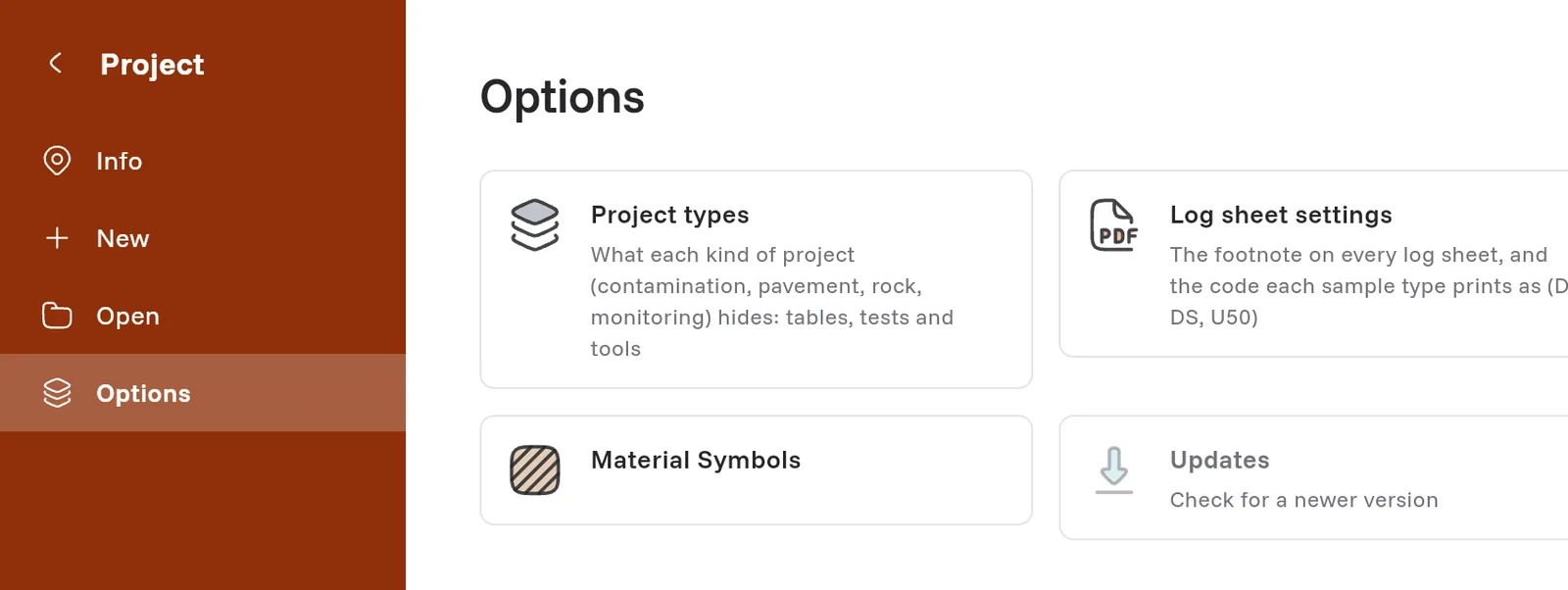
Open the log sheet settings
- Click Project at the left of the ribbon.
- Click Options.
- Click Log sheet settings.
Select the sheet for the workspace
Borehole Logging has three built-in sheets:
- AS 1726: the borehole, cored and test pit logs of AS 1726-2017. This is the default.
- TfNSW / RMS: the non-core and cored drill hole logs of Transport for NSW.
- Standard Australia: a common Australian layout for soil and cored logs.
To select the sheet:
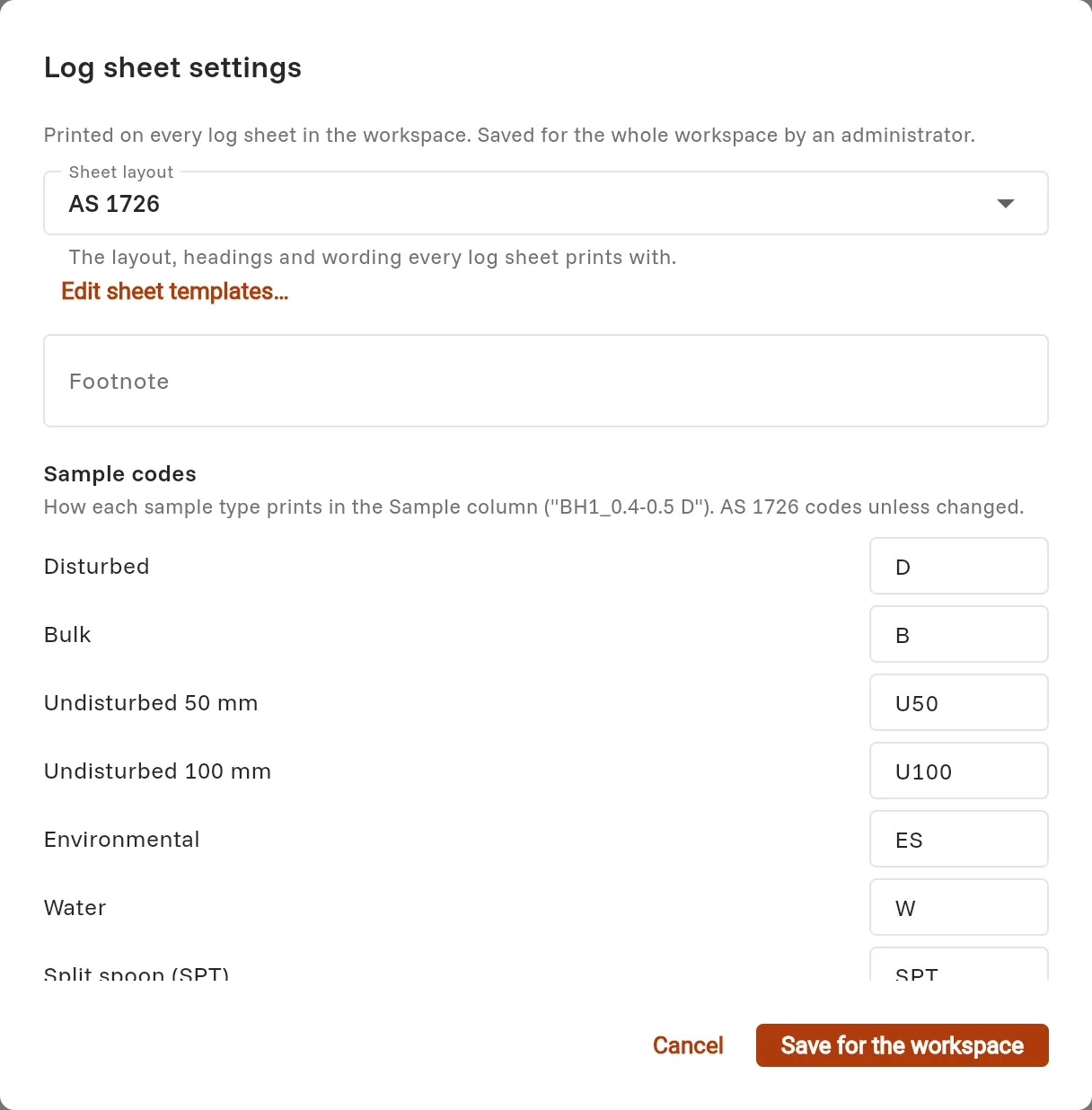
- In Log sheet settings, select the sheet in Sheet layout.
- Click Save for the workspace.
All projects print on this sheet, except a project that has its own sheet.
Set the footnote and the codes
In Log sheet settings, you can also set:
- Footnote: the text at the bottom of each log sheet, for example This log must be read with the accompanying standard notes.
- Sample codes: how each sample type prints in the Sample column, for example D for disturbed and U50 for undisturbed 50 mm.
- Defect codes and Weathering codes: how each defect type and weathering grade prints. Leave a code empty to print the sheet's own code.
- Placeholder check: words that you type in a log while you wait for an answer, for example TBC or ??. A hole with one of these words shows a check. See Check the log.
- Header fields: fields of your own in the header of each hole, for example a permit number. Click Add a header field.
- Workspace defect types: defect types of your own, for example DL for a drilling-induced fracture. Click Add a defect type.
Click Save for the workspace to keep the changes.
Select a sheet for one project
A project can print on a different sheet from the workspace.
- In the project tree, click the project.
- On the project page, go to Log options.
- In Log sheet, select the sheet. Default uses the workspace sheet.
- Click Save options.
Make your own template
You cannot change a built-in sheet. Make a copy of it, then change the copy.
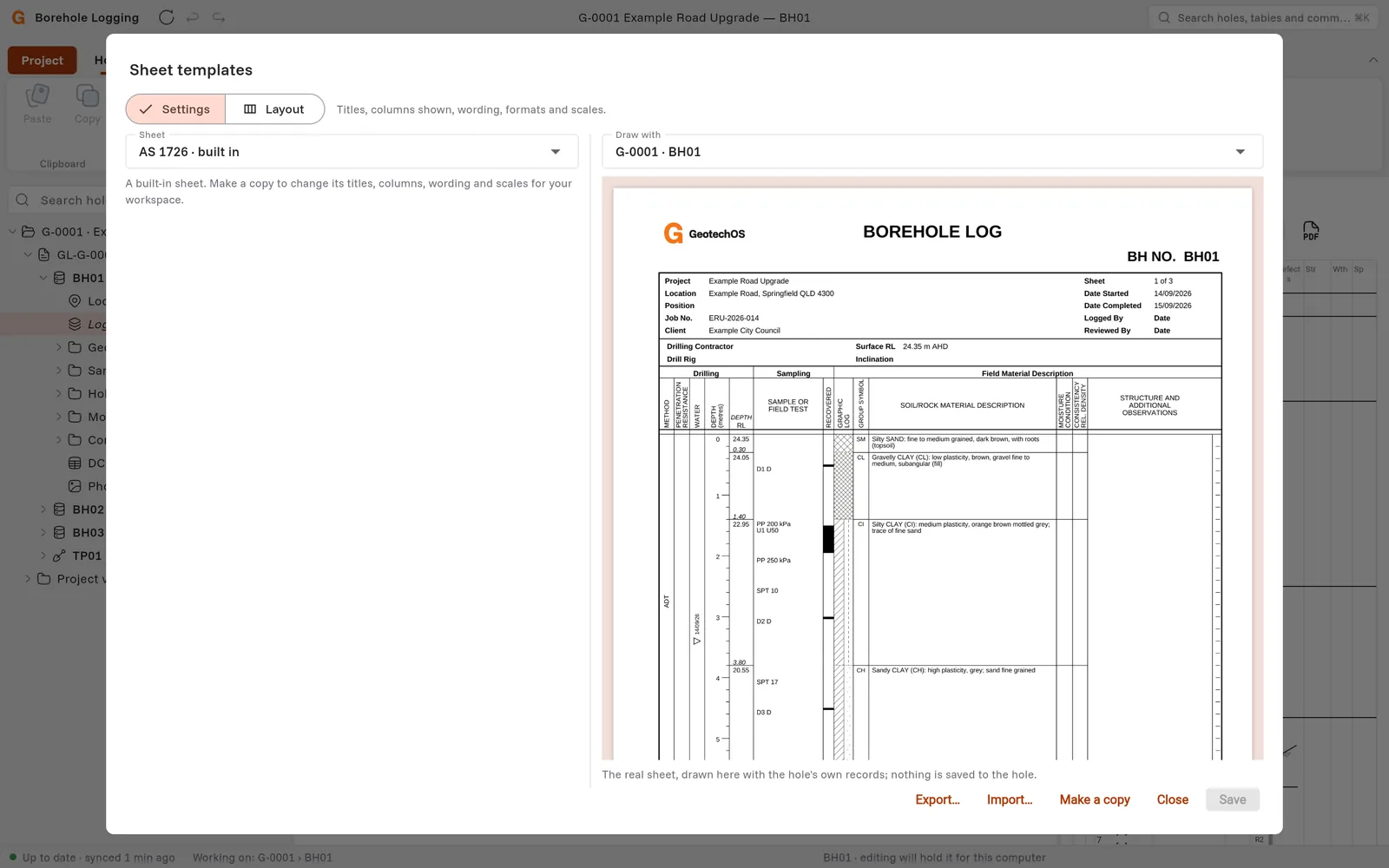
- Click Project › Options › Sheet templates. You can also click Edit sheet templates… in Log sheet settings.
- In Sheet, select the built-in sheet that is nearest to what you want, for example AS 1726 · built in.
- Click Make a copy. Borehole Logging names the copy, for example AS 1726 (copy).
- In Draw with, select a hole. Borehole Logging draws the sheet with the rows of that hole while you work. The hole does not change.
- Change the settings. See What you can change.
- Click Save.
Each time you save, Borehole Logging keeps a new version of the template. To print on your template, select it in Sheet layout or in the project's Log sheet.
What you can change
Click Settings at the top of the dialog for these settings:
- Sheet titles: the title of the soil sheet, the cored sheet and the test pit sheet.
- Formats: how Dates and Defect labels print, and the edges of the strength and spacing scales.
- Wording: the text where coring starts, at the end of the hole and when groundwater is not met. Use the blanks that the dialog shows, for example {depth} and {reason}.
- Soil sheet columns and Cored sheet columns: clear a column to leave it out. Its width goes to the description. Type a heading, with a / between the lines.
Click Layout for more changes on the drawn sheet:
- Drag the edge of a column in the headings to make the column wider or narrower.
- Click a column to change its heading, or to move, add or remove it.
- Drag the dot of a header item to move it.
- Click Reference PDF… to show an old log sheet behind the drawing. Use it to match your company's layout.
Share a template
- To save a template as a file, click Export….
- To add a template from a file, click Import….
- To delete your template, click Remove. You cannot remove the template that the workspace prints on. Select a different sheet in Log sheet settings first.
Issued logs keep their sheet
When you set the status of a hole to Complete, or the office locks the hole, Borehole Logging records the template and its version. The hole then prints on that version, also after somebody changes the template. If you set the status back to In progress, the hole prints on the current sheet again.