
Import AGS 4, gINT and PDF logs
Bring holes into GeotechOS Borehole Logging from AGS 4, a gINT project, a gINT Excel export or PDF logs, and choose what happens to data already there.
Applies toWindows and macOSWeb browser
You can bring holes and their records into an investigation from a file. Before Borehole Logging changes anything, it shows what the file adds and changes. You choose what happens to the data that is already in the investigation.
Files that you can import
| File | How Borehole Logging reads it |
|---|---|
| AGS 4 (.ags) | On your computer. Borehole Logging first checks the file against the AGS rules of its edition. |
| gINT project (.gpj) | On the server. Your computer must be online. |
| gINT Excel export (.xlsx, .xlsm) | On the server. Your computer must be online. |
| PDF logs (.pdf) | The server reads the printed logs. A long PDF takes a few minutes. The investigation must be on the server, so sync first. |
From an AGS 4 file, Borehole Logging reads these groups: LOCA (the holes), GEOL, SAMP, ISPT, IVAN, IPEN, HDPH, CORE, DISC, WETH, WSTG and DETL. The import tells you about other groups in the file that it does not bring in.
Before you start
Make the project and the investigation that the holes go into. See Create a project.
Import a file
- In the project tree, click the investigation.
- Click Insert › Import.
- Select the file and click Open.
- For an AGS file, read the result of the check. If the file breaks an AGS rule, Borehole Logging shows the problems. Click Continue to import to bring in the file as it is, or close the report and correct the file first.
- In Into the investigation, make sure that the investigation is correct.
- Under Data already here, select what happens to holes and rows that are already in the investigation. See Choose what happens to data already here.
- Look at the list of holes. Each hole shows what the import does to it. Click a hole to see the rows that are left out, and why.
- Click Import 5 changes. The button shows the number of changes.
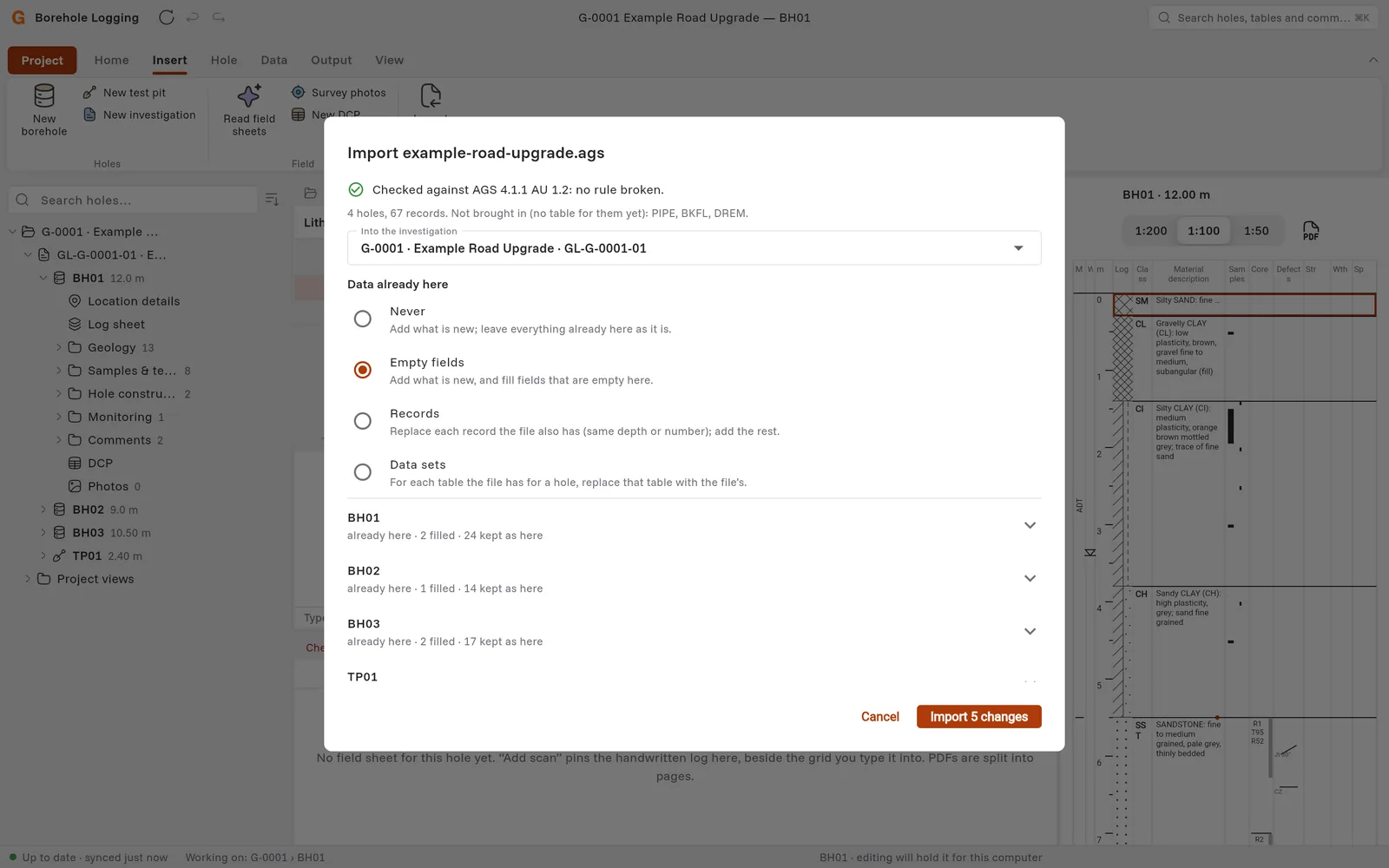
Choose what happens to data already here
| Choice | What it does |
|---|---|
| Never | Adds what is new. Does not change anything that is already here. |
| Empty fields | Adds what is new, and fills the fields that are empty here. |
| Records | Replaces each row that the file also has (the same depth or number), and adds the rest. |
| Data sets | For each table that the file has for a hole, replaces the table with the rows from the file. |
Caution: Records and Data sets replace rows that you logged. Use Never or Empty fields if you are not sure.
The list of holes shows the result of your choice, for example already here · 2 filled · 24 kept as here. Borehole Logging does not change a hole that another device holds, or a hole that is locked in the office.
After the import
- The holes and rows are on your computer. Borehole Logging sends them at the next sync.
- For a cored borehole, Borehole Logging sets Start coring from the first coring method in the file, for example NMLC. See Print log sheets as PDF.
- Look at the Checks of each hole. See Check the log.