
Sync your field work from a phone or tablet
Send field logs from a phone to the office with GeotechOS Borehole Logging: read the sync status, sync now, and review changes the server did not accept.
Applies toPhone and tabletWeb browser
The field logger saves each change on the phone first. When the phone has signal, GeotechOS Borehole Logging sends your changes to the server and gets the changes from the office. This is a sync. This page tells you how to see the sync status on a phone, and what to do when a change needs review.
For how sync and holds work on all devices, see Work offline and sync.
Look at the sync status
The sync status shows under Investigations at the top of the screen.
| Sync status | What it means | What to do |
|---|---|---|
| Up to date · just now | The server has all your changes. | Nothing. |
| 3 to send · tap to sync | Some changes are on this phone only. | Tap the status to sync now. |
| Offline · 3 saved on this device | There is no signal. Your changes are safe on the phone. | Continue to log. Borehole Logging sends the changes when there is signal. |
| Sending 3… or Syncing… | A sync is in progress. | Wait. |
| 2 changes need review | The server did not accept some changes as they were. | Tap the status. See Review changes. |
| Sync problem · tap to retry | The sync stopped with an error. | Tap the status to try again. |
Sync now
Borehole Logging syncs by itself, for example when you add a hole and when the signal comes back. To sync now, do one of these:
- On Investigations, pull the list down and release it.
- Tap the sync status.
- Tap Settings, then Sync now.
See what is waiting to send
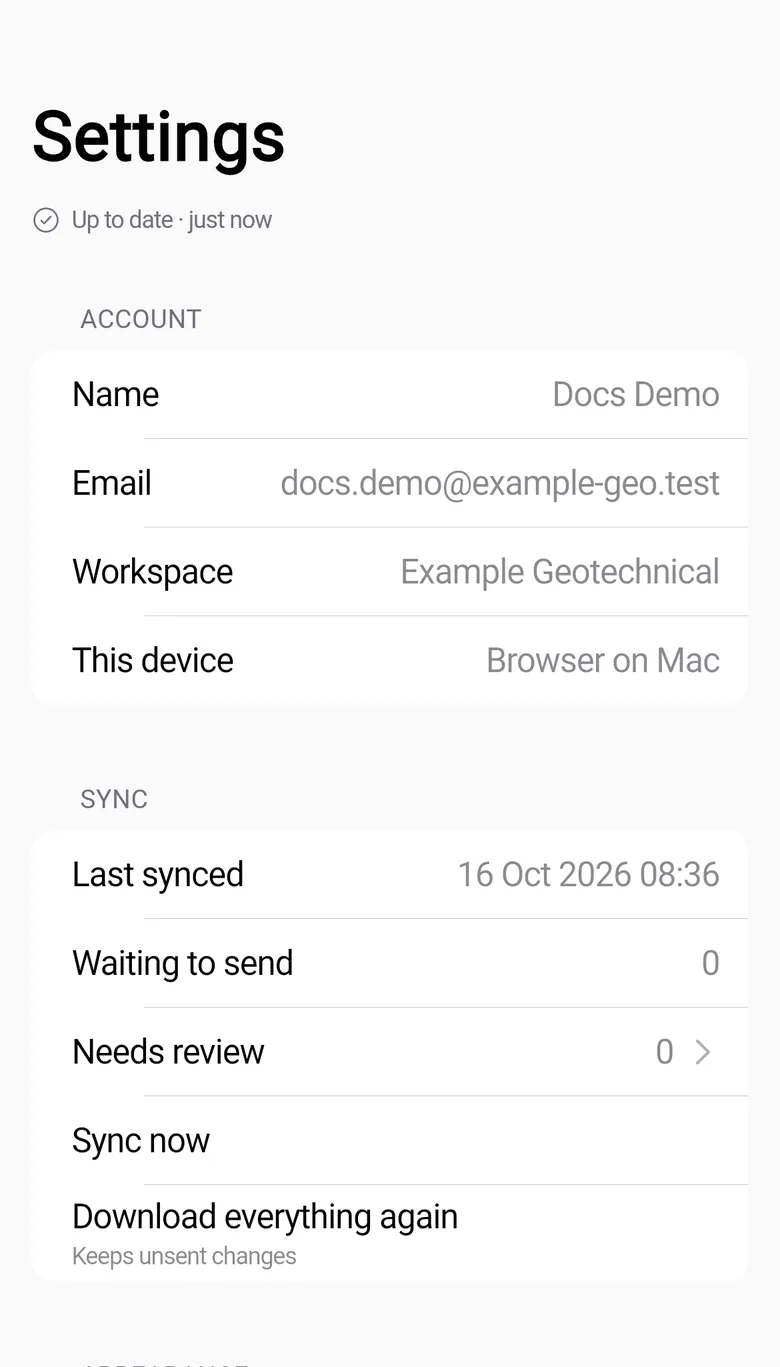
Tap Settings. The Sync section shows:
- Last synced: the date and time of the last sync.
- Waiting to send: the number of changes on this phone only.
- Needs review: the number of changes that need you to decide.
Unsent also shows on each hole and row that has changes to send.
Review changes
Sometimes the server does not accept a change as it is. For example, somebody in the office changed the same row while your change waited on the phone. Borehole Logging keeps your change until you decide.
- Tap the sync status, or tap Settings › Needs review.
- Read the message for each change.
- Tap one of the buttons:
| Button | What it does |
|---|---|
| Keep mine | Sends your version. It replaces the office version. |
| Take theirs | Keeps the office version. Borehole Logging puts it on your phone. |
| Try again | Sends the change again, for example after the office unlocks the hole. |
| Discard | Removes your change from the phone. It is not sent. |
Caution: A change that you discard is gone. Borehole Logging asks you to confirm first.
If another hole in the investigation has the same identifier, give your hole a different identifier on the Hole tab and tap Save changes.
Get everything from the server again
If the logs on the phone do not look correct, get a new copy from the server:
- Tap Settings.
- Tap Download everything again.
Borehole Logging keeps the changes that are not sent yet.
Before you sign out
Make sure that Waiting to send shows 0. If changes are not sent, Borehole Logging shows Still sending and does not sign you out. Go to a place with signal, sync, then sign out.
Note: In a web browser on a phone, a message can tell you that the browser has not granted persistent storage. The browser can then delete your work when the phone is low on space. Sync often, or use the phone app. Contact support to get the app.