
Print log sheets as PDF
Look at the log sheet of a hole in GeotechOS Borehole Logging, correct it on the sheet, and save one hole or many holes as a PDF. This works offline.
Applies toWindows and macOSWeb browser
GeotechOS Borehole Logging draws the log sheet on your computer from the rows that you log. You can look at the sheet while you log, correct a row on the sheet, and save the sheet as a PDF. You do not need an internet connection.
Before you start
Select the sheet template for the workspace or the project. See Set up log sheets and sheet templates.
Look at the log sheet
- In the project tree, open the hole.
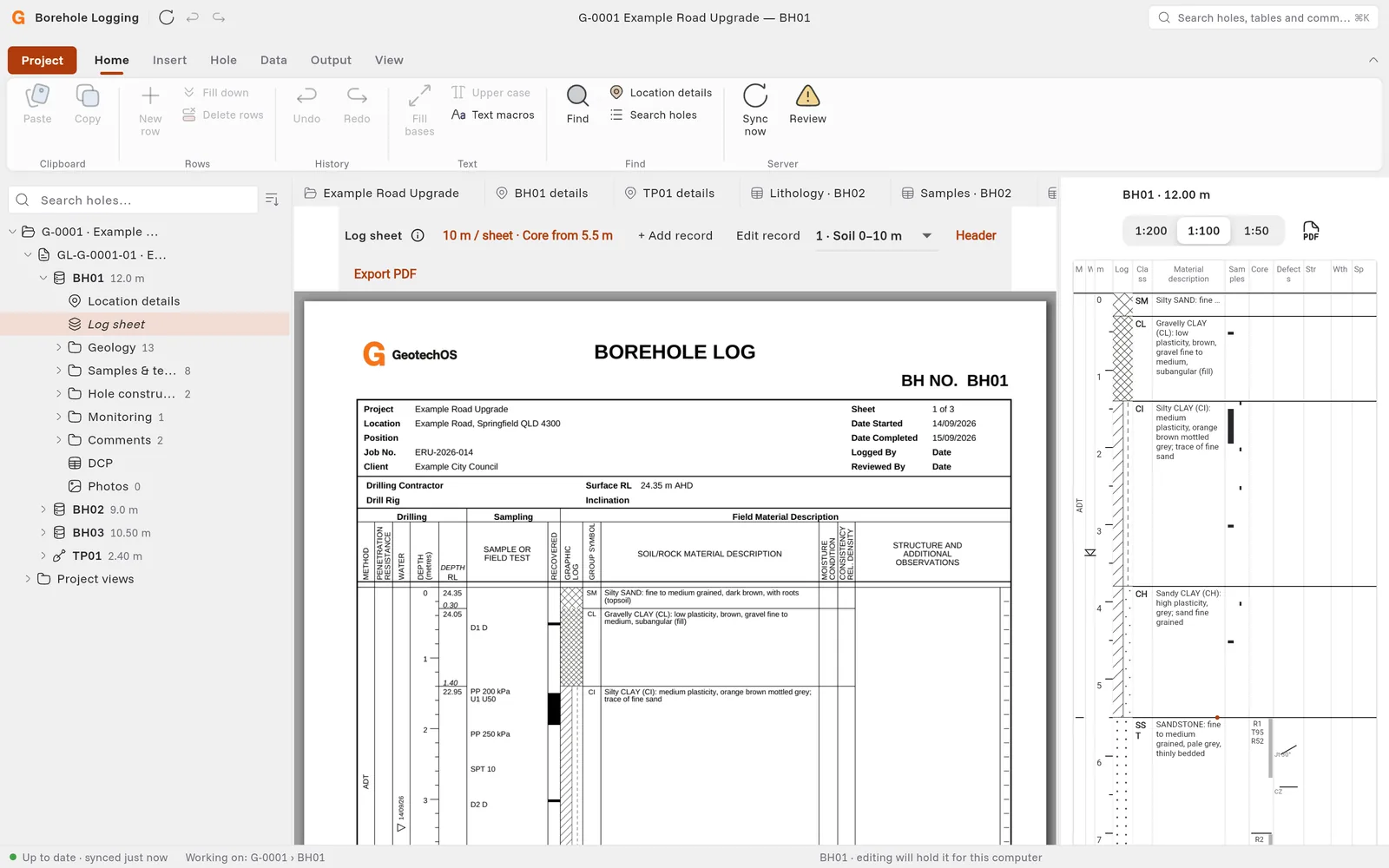
- Click Log sheet under the hole. You can also click Output › Log sheet, or press Ctrl+Shift+P (⌘+Shift+P on a Mac).
Borehole Logging draws the sheet as it prints. When you change a row, the sheet changes.
To see the other sheets of a deep hole, select the sheet in the list at the top. Each sheet in the list shows its number, Soil or Core, and its depths.
Correct a row on the sheet
- Click a row on the sheet, for example a stratum or a sample. Borehole Logging opens the row so that you can change it.
- Click an empty part of the log to add a row at that depth. You can also click + Add record.
- Click Header to change the header of the hole.
Set the sheet scale and where coring starts
The button at the top shows the scale and where coring starts, for example 10 m / sheet · Core from 5.5 m.
- Click the button.
- In Metres per sheet, type the depth that each sheet shows. This does not change the depths in the log.
- For a cored borehole, type the depth in Start coring at depth (m). The sheets below this depth are cored sheets. For a borehole with no coring, leave it empty.
- Click Apply.
Note: Borehole Logging does not guess where coring starts. If a borehole has core runs, defects, strength or weathering rows, but no Start coring depth, the sheet has a layout issue. When you import an AGS file, Borehole Logging sets Start coring from the first coring method in the file, for example NMLC.
Save one hole as a PDF
- Open the hole.
- Click Output › Log PDF, or press Ctrl+P (⌘+P on a Mac). You can also click Export PDF on the log sheet.
- Save the file. The file name has the job number and the hole, for example ERU-2026-014 BH01.pdf.
In a web browser, the PDF goes to your downloads folder.
Save many holes in one PDF
- In the project tree, click the project or the investigation.
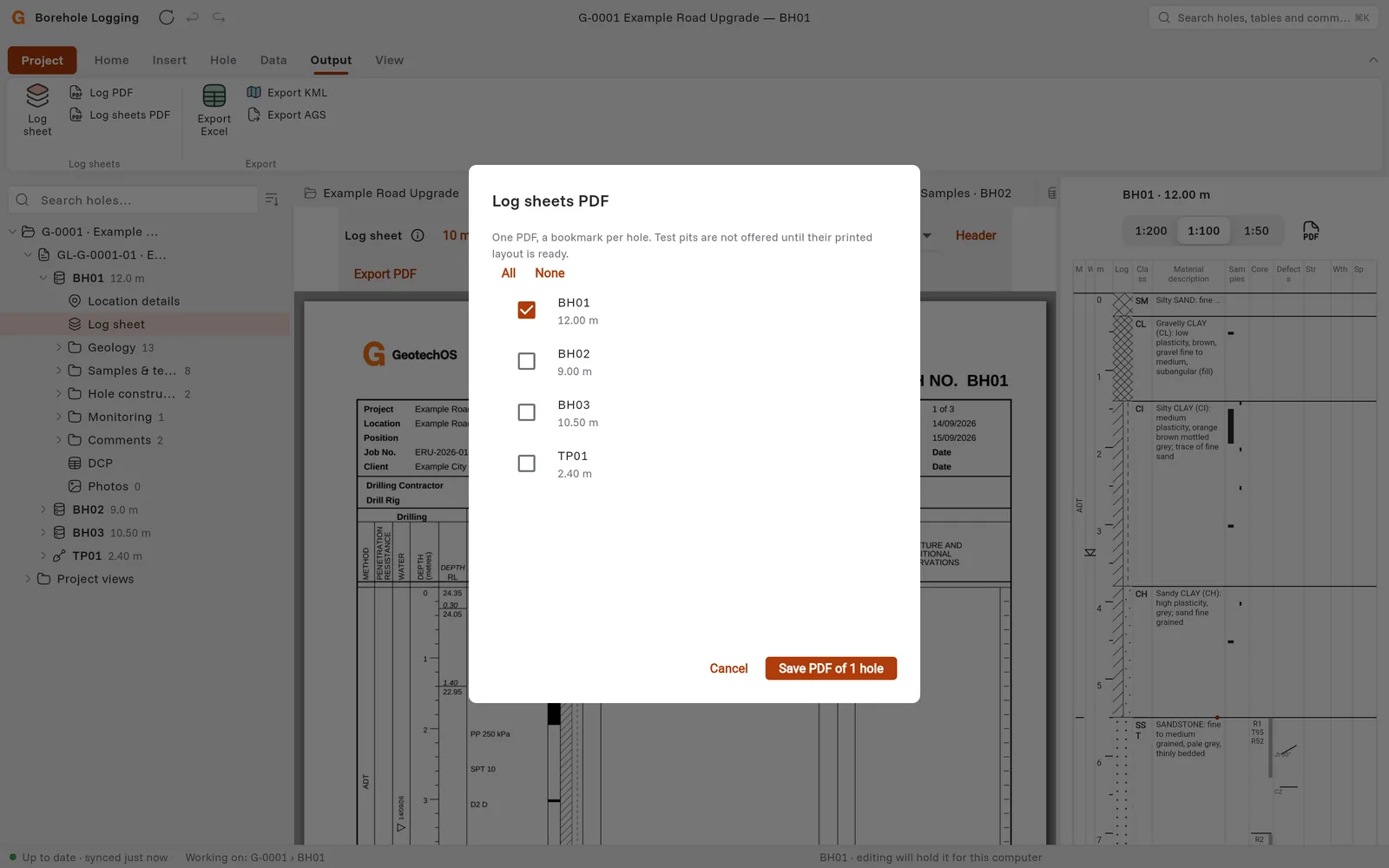
- Click Output › Log sheets PDF.
- Select the holes. Click All or None to select or clear all the holes.
- Click Save PDF of 4 holes. The button shows the number of holes that you selected.
Borehole Logging makes one PDF with a bookmark for each hole.
If the sheet has layout issues
A layout issue is a problem that stops Borehole Logging from drawing the sheet correctly. The log sheet then shows a button, for example 1 layout issue, and you cannot save the PDF. Click the button to read the issues.
| Layout issue | What to do |
|---|---|
| Core records exist without an explicit coring-start depth. | Set Start coring. See Set the sheet scale and where coring starts. |
| A … row at … m is deeper than the final depth. | Correct the depth of the row, or make the final depth of the hole deeper. |
| Invalid metres per sheet. | Type a positive number in Metres per sheet. |
Also look at the Checks panel before you issue a log. See Check the log.