
The hole details
Fill in the details of a borehole or test pit in Borehole Logging. Set the status, final depth, ground level, position, dates, drilling method and contractor.
Applies toWindows and macOSWeb browser
The hole details are the header of the log: where the hole is, when it was drilled, and how. The log sheet prints these details at the top.
Open the hole details
Do one of these:
- In the project tree, open the hole, then click Location details.
- Open the hole, then click Home › Location details, or press Ctrl+Shift+D.
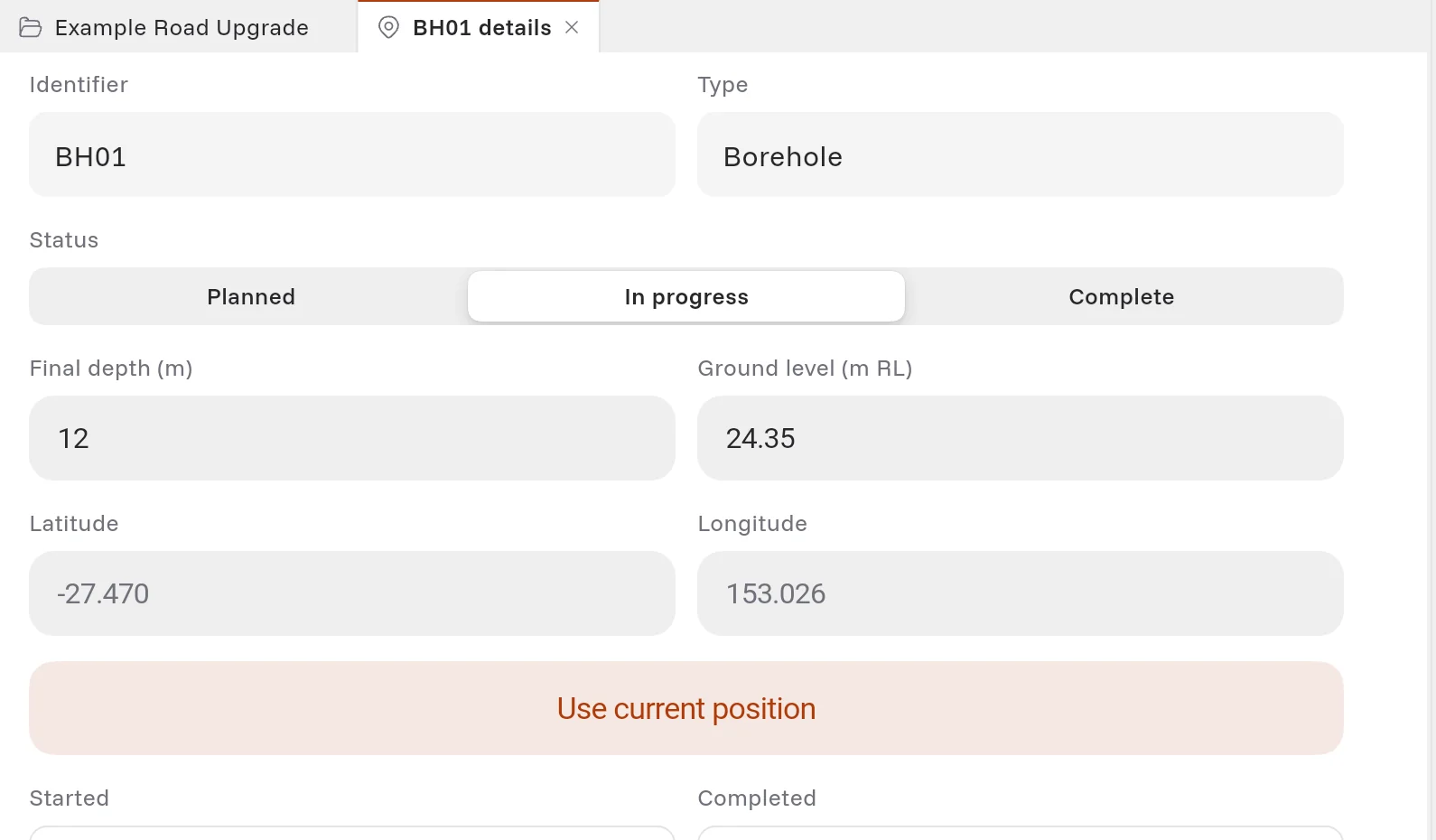
Fill in the details
- Make sure that the Identifier and the Type are correct.
- Set the Status: Planned, In progress or Complete.
- Type the Final depth (m) and the Ground level (m RL).
- Set the position. Do one of these:
- Type the Latitude and the Longitude.
- At the hole, click Use current position. Borehole Logging uses the position of your device.
- Type the easting and the northing in the holes table. See Add many holes from the holes table.
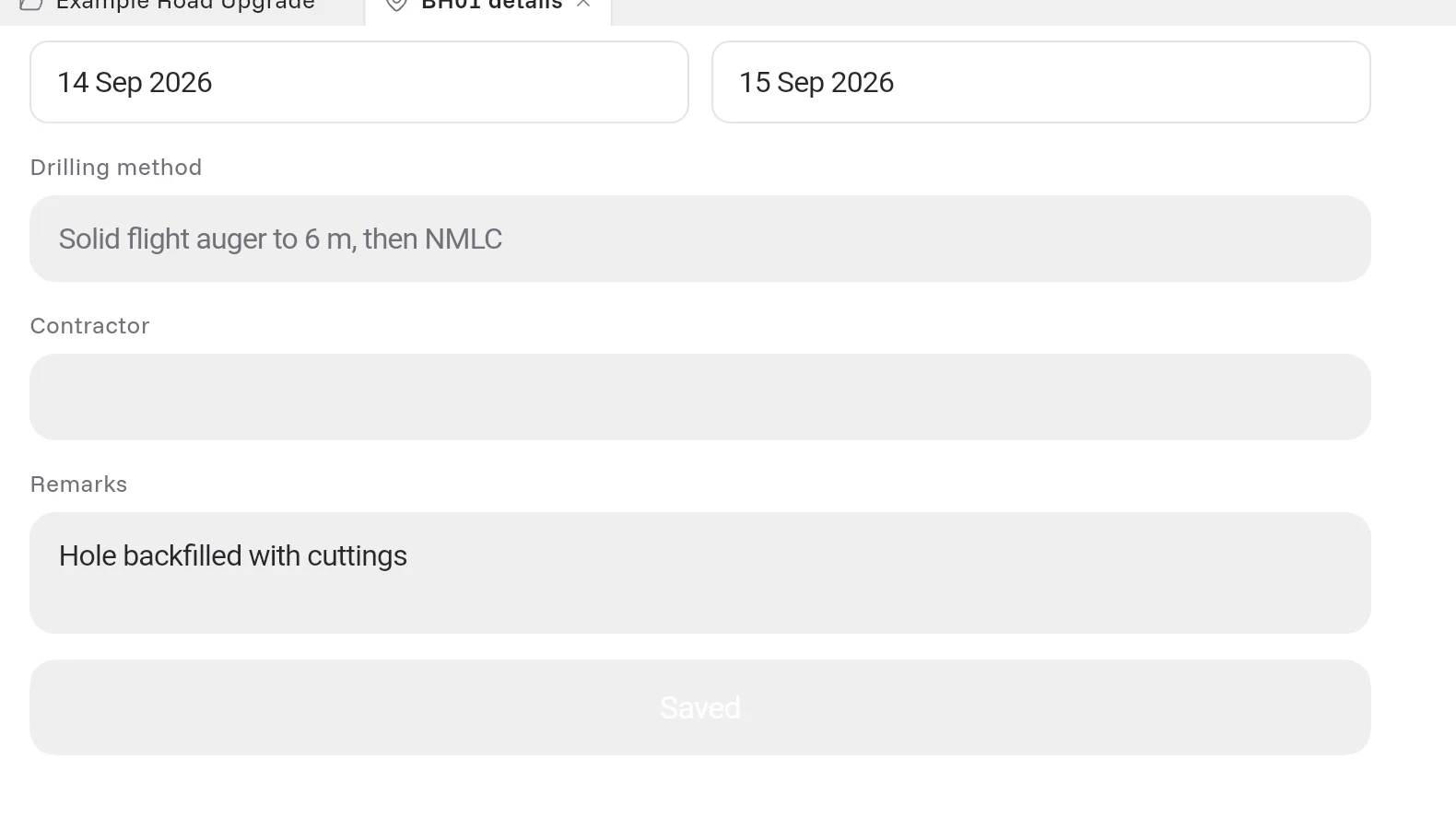
- Click Started and select the date, or type it as DD/MM/YYYY, for example 14/09/2026. Do the same for Completed. The app shows the date as your region writes it, for example 14 Sep 2026.
- Type the Drilling method, the Contractor and the Remarks.
- Click Save changes. When the button shows Saved, Borehole Logging has saved the details.
The rest of the header
The log sheet prints more details at the top: the driller, the rig, the bit, who logged and reviewed the hole, and why the hole stopped. You fill these in the full header.
- Open the hole's Log sheet in the project tree.
- Click a field in the header at the top of the sheet. The header window opens at that field.
- Fill in the fields, for example Driller, Logged by, Reviewed by and Terminated because.
- Click Save, or press Ctrl+Enter.
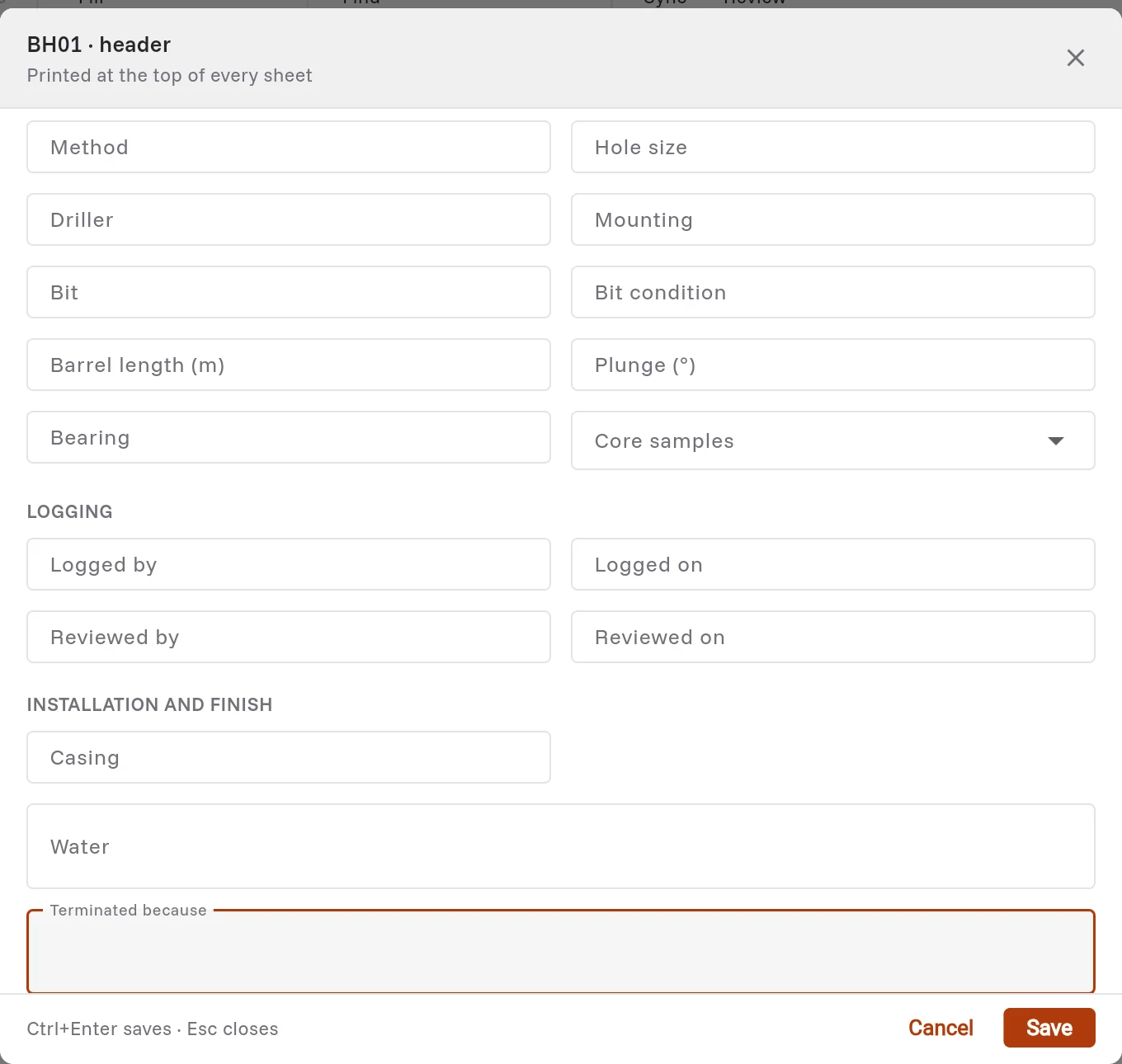
Tip: When the Checks pane shows Add why the hole was terminated, click the check. The header opens at Terminated because.
Note: The coordinate system and the vertical datum come from the project. To change them, change the project details. See Create a project.