
Add photos and field sketches to a hole
Take core tray, test pit and site photos in the Borehole Logging field logger, add a field sketch, and choose which photos print with the log.
Applies toPhone and tabletWeb browser
Add photos of core trays, the test pit face, the rig and the site to the hole. Add a field sketch as a photo of the sketch. The photos stay on the phone until there is signal. Then GeotechOS Borehole Logging sends them to the server.
Before you start
Open the hole in the field logger. See Log a hole on a phone or tablet.
Add a photo
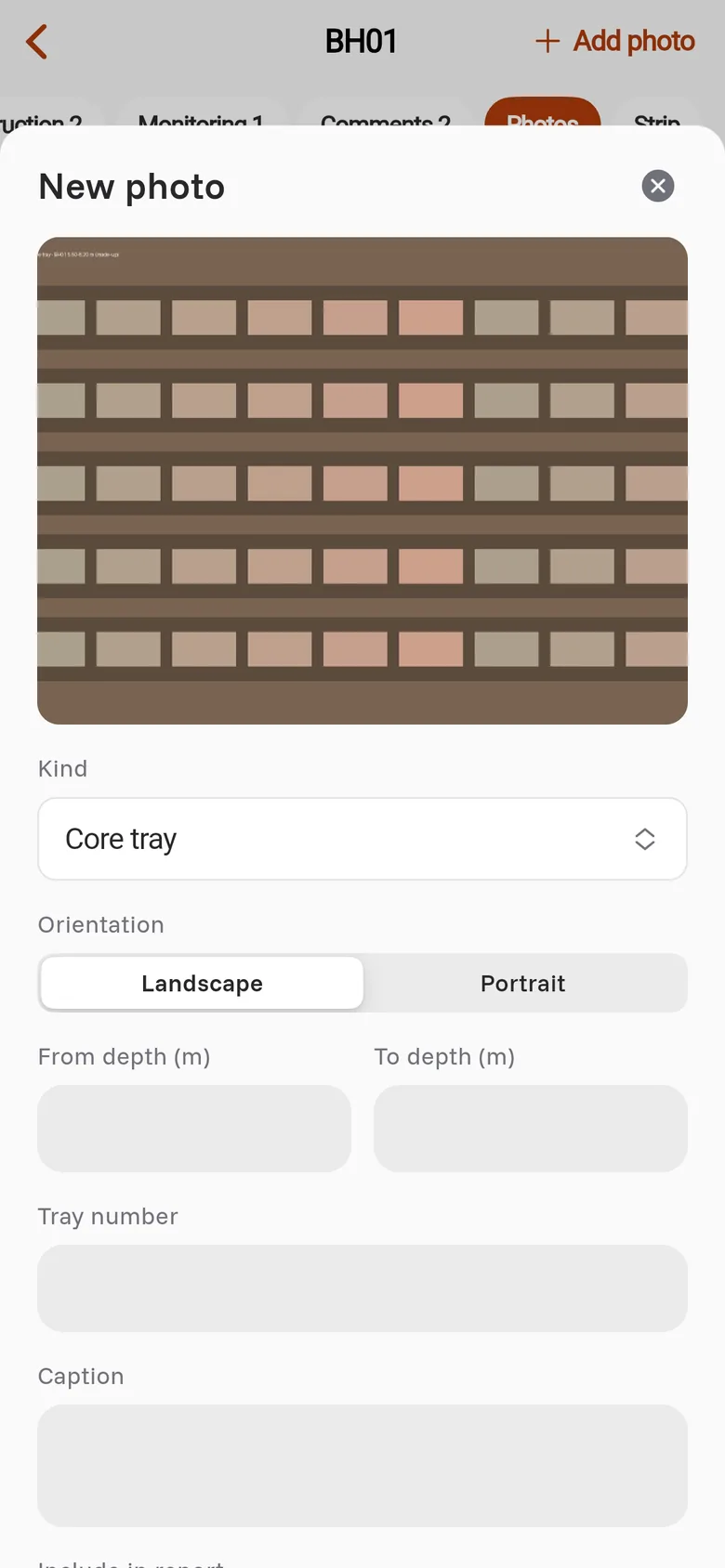
- Tap the Photos tab. Swipe the row of tabs to the left to see it.
- Tap Add photo at the top right.
- Tap Take photo to use the camera, or Choose from library for a photo that is on the phone. In a web browser, tap Choose a file.
- In Kind, select what the photo shows, for example Core tray, Excavation or Sketch.
- Select Landscape or Portrait.
- In From depth (m) and To depth (m), type the depths that the photo shows.
- For a core tray, type the Tray number.
- Optional: type a Caption.
- Tap Save.
The photo shows in the Photos tab. To send shows on the photo until Borehole Logging sends it.
Note: A Core tray photo must have a from depth and a to depth. The depths must not be deeper than the final depth of the hole.
Add a field sketch
- Draw the sketch on paper, for example the test pit face with the strata and the groundwater.
- Add a photo of the sketch. In Kind, select Sketch.
- Type the depths that the sketch shows, and a caption.
- Tap Save.
On a test pit log sheet, Borehole Logging prints the Excavation photo and the Sketch of the pit.
Choose the photos that print
Include in report is on for a new photo. To keep a photo out of the log sheet, tap the photo, set Include in report to off, and tap Save.
Change or delete a photo
- Tap the photo.
- Change the fields and tap Save, or tap Delete.
- If you delete the photo, tap Delete again to confirm.
Caution: If a photo shows To send, it is on this phone only. If you delete it, it is gone. If the photo is sent, Borehole Logging also removes it from the log in the office.
If a photo is not sent
Not sent shows on a photo that the server did not accept. Tap the photo to read the message. Borehole Logging tries again at the next sync.