
Book in samples and tests
Book in a job in GeotechOS Lab in one step. Record the docket, the samples and the tests, and Lab receives the samples and puts the tests on the bench.
Applies toWindows and macOSWeb browser
Book in records a job in one step: the docket, each sample, and the tests for each sample. Lab receives the samples, raises the job and puts the tests in the work queue.
Before you start
- Set up your laboratory and choose the tests you run.
- The project must be in GeotechOS, for example Example Road Upgrade. If it is not, click New project… next to Project on the Book in page. See Start a project and keep its clients.
Book in a job
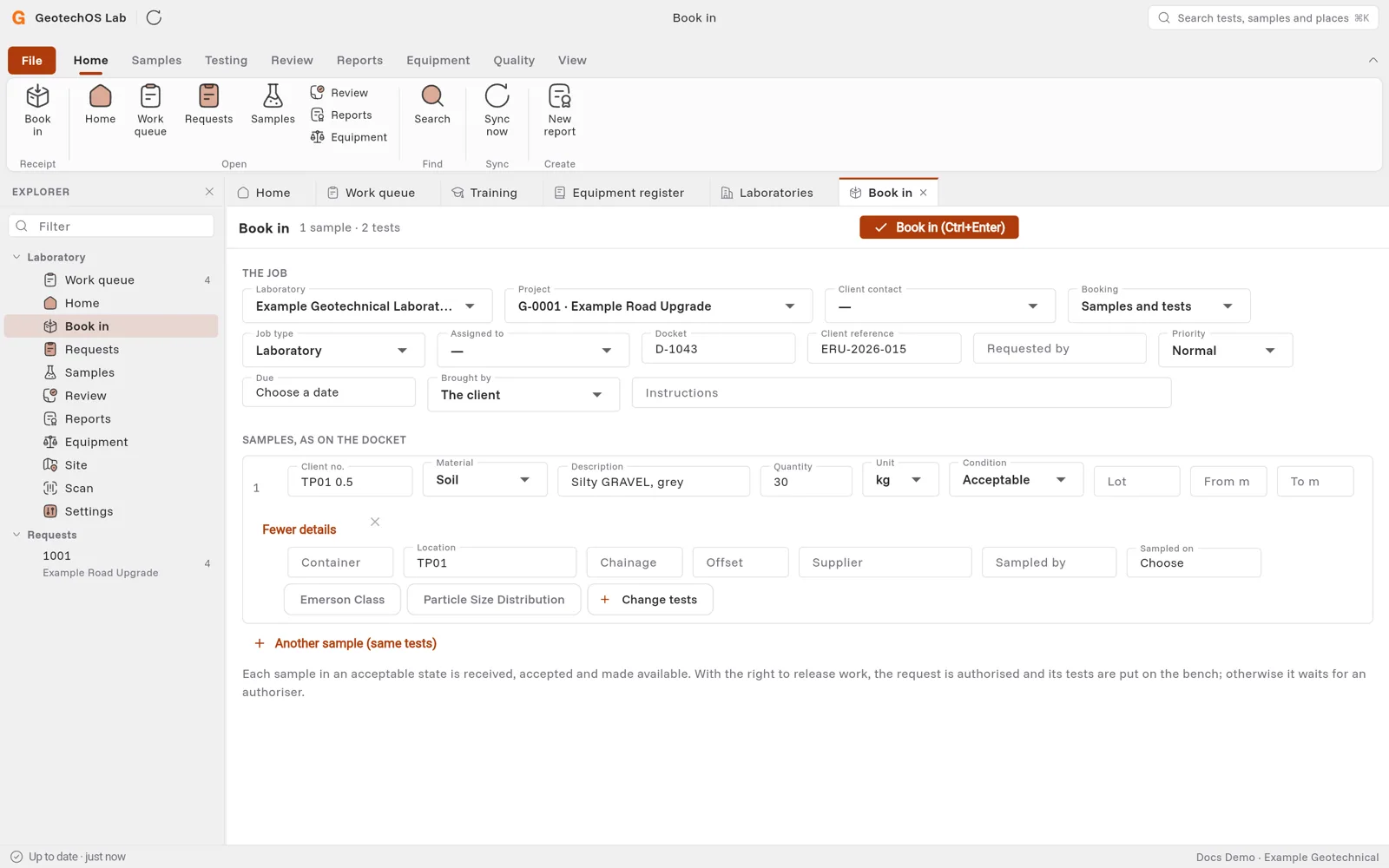
- Click Home › Book in, or press Ctrl+B.
- Under The job:
- In Project, select the project. If the project is not in the list, click New project…. When you create it, Lab selects it.
- In Client contact, select the person who gets the report. The list shows the project's contacts. The project's report recipients show (gets reports).
- In Booking, keep Samples and tests. For site work on many samples, see Multi-sample requests.
- Type the Docket number, the Client reference and who it was Requested by.
- In Due, click and select the date the results are due.
- In Brought by, select The client or Our field staff.
- Under Samples, as on the docket, fill in the first sample:
- In Client no., type the client's sample number, for example BH01 1.0.
- Select the Material and type the Description, for example Sandy CLAY, brown.
- Type the Quantity and select the Unit.
- In Condition, keep Acceptable if the sample came in good condition.
- In Lot, choose the earthworks lot that the sample came from, if the project has lots. A field density test in that lot is judged against this sample's MDD. See Earthworks lots.
- Type the depth in From m and To m.
- To add where it was taken, click Where it was taken… and type the location, chainage, offset, who sampled it and when.
- Click Pick its tests. Select the tests and click Use … picked. Tests for the sample's material show first.
- If a test shows set details, click it and type what the client asked for. For example, for a CBR: the target density ratio, the soak and the surcharge.
- To add a sample with the same tests, click Another sample (same tests).
- Click Book in, or press Ctrl+Enter.
What happens next
Lab shows Booked in with the job number, for example 1001, and each sample's number, for example S-1001A. It says how many tests are on the bench.
- A test that needs another test's result waits for it. For example, a CBR waits for the dry density–moisture relationship (MDD) of the same sample. It starts by itself when that result is approved.
- If a sample did not come in acceptable, the job is held. Look at the sample, then release the job.
- If you may not release work, the job waits on Home for someone who may.
Note: A CBR needs a dry density–moisture relationship on the same sample. If you pick a CBR without one, Lab asks you to pick that test too.