
Earthworks lots, layers and test locations
Set up a project's earthworks lots in GeotechOS Lab before field density testing: the material, the compaction specification, layers and test locations.
Applies toWindows and macOSWeb browser
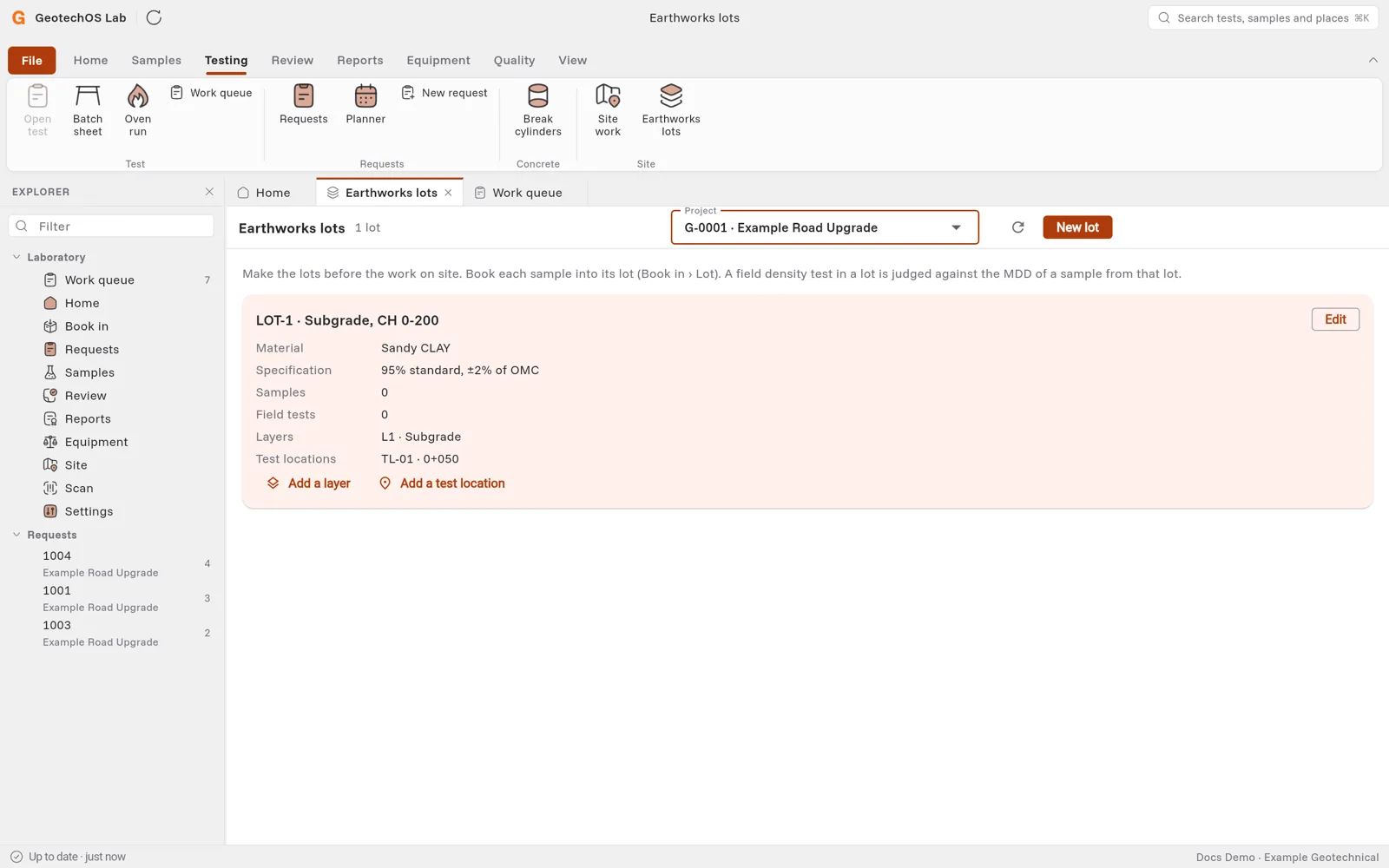
An earthworks lot is an area of fill that is built and tested as one, for example LOT-1 · Subgrade, CH 0–200. Each lot has a material and a compaction specification, for example 95 % standard, ±2 % of OMC.
Make the lots before the work on site. A field density test in a lot is judged against the maximum dry density (MDD) of a sample from the same lot.
Make a lot
- Click Testing › Earthworks lots.
- Under Project, choose the project.
- Click New lot.
- Type the Code and the Name of the lot.
- Type the Material, for example Sandy CLAY, and choose its Kind. Lots of the same material share it.
- Under Specification, type the limits that the project specification sets:
- Minimum density ratio (%) and, if it is set, Maximum density ratio (%).
- Compactive effort: Standard or Modified.
- Moisture tolerance (± %).
- Click Save.
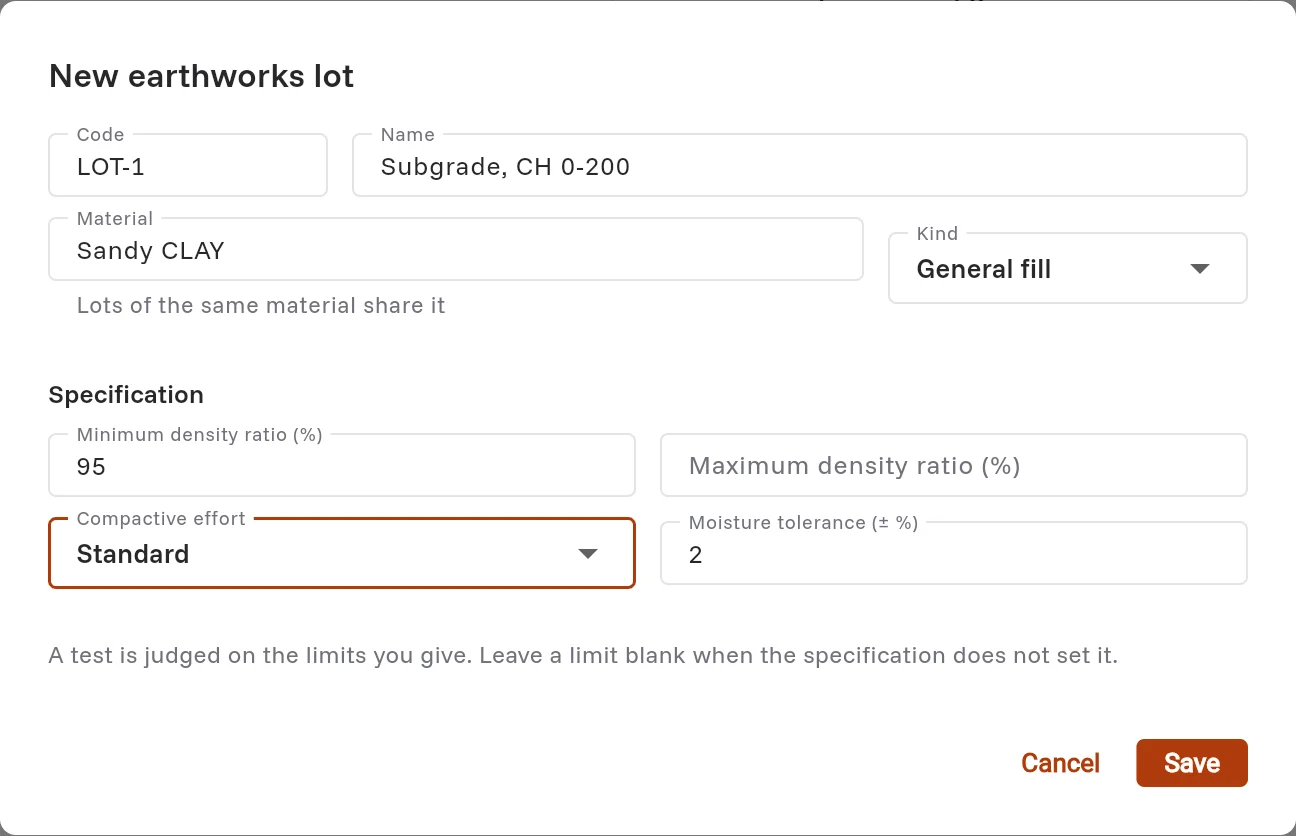
Note: Lab judges a test on the limits that you give. If the specification sets only a minimum density ratio, leave the moisture tolerance blank.
Add layers and test locations
On the card of the lot:
- Click Add a layer. Type the code, for example L1, the name and the thickness.
- Click Add a test location. Type its name, for example TL-01, and its chainage. Type the latitude and longitude if you have them.
The tablets get the lots, layers and locations at the next sync.
Book samples into a lot
When you book in a sample for an MDD test, choose its lot in the Lot column of Book in. The column shows a list when the project has lots. See Book in samples and tests.
The card of each lot shows how many samples and field tests it has.