
Open Lab and sign in
Open GeotechOS Lab in a web browser, on a computer, an iPad or a phone, and sign in with your work email or Google. No password is needed.
Applies toWindows and macOSWeb browserPhone and tablet
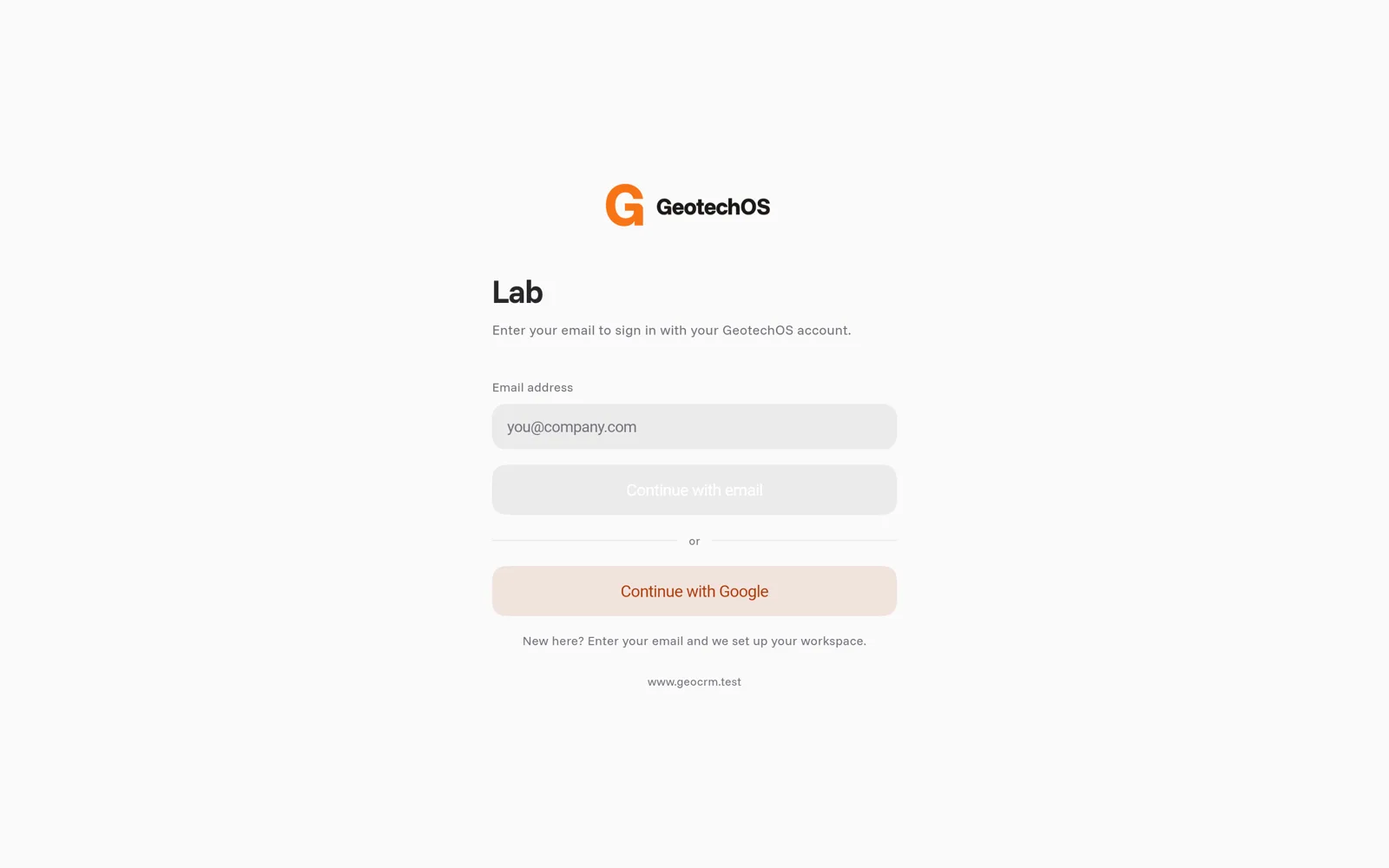
Sign in to Lab with your work email. Lab does not use a password. It sends a code to your email.
Open Lab
- In a web browser: go to au.geotechos.com/lab. Use a current version of Chrome, Edge, Safari or Firefox. Make the window wide to see the desktop workspace.
- On Windows or macOS: install the Lab app. Contact support to get it.
- On an iPad or a phone: contact support to get the app for your device.
Note: The first time you open Lab in a web browser, the app downloads. This can take one minute on a slow connection. The next time, it opens quickly.
Sign in with your email
- In Email address, type your work email address.
- Click Continue with email. Lab sends a 6-digit code to your email.
- Type the code. Lab opens.
If the email does not arrive in two minutes, look in your junk mail folder. Then click Resend code. To use a different address, click Use a different email.
Sign in with Google
- Click Continue with Google.
- Select your Google account.
- Go back to Lab. You are signed in.
New to GeotechOS
You do not need an account before you start. When you sign in for the first time, GeotechOS makes a workspace for you, and Lab shows the setup checklist.
To work in your company's workspace, ask your administrator to add you. Then sign in with that email address.
Note: If Lab says "Your role does not let you see Laboratory", your account has no laboratory access. Ask your administrator to give you a role with Laboratory in it. See People and authorisations.
Sign out
- On a computer: click File › Account › Sign out.
- On an iPad: click the settings icon at the bottom of the rail, then Sign out.
- On a phone: tap Me, then Sign out.
Lab asks you to confirm. Then it removes the laboratory's work from the device. Everything that is synced stays on the server.
Caution: If some work is not sent yet, Lab shows Still sending and does not sign you out. Connect to the internet and sync first. If you sign out, unsent readings are lost.