
Laboratory settings, signing and standard text
Change your laboratory in GeotechOS Lab: let a reviewer approve, set the next job number, install the report-signing certificate and keep standard text.
Applies toWindows and macOSWeb browser
Change your laboratory's details, how results are signed off, and the wording that people use often. You find these settings under File › Options.
Change the laboratory's details
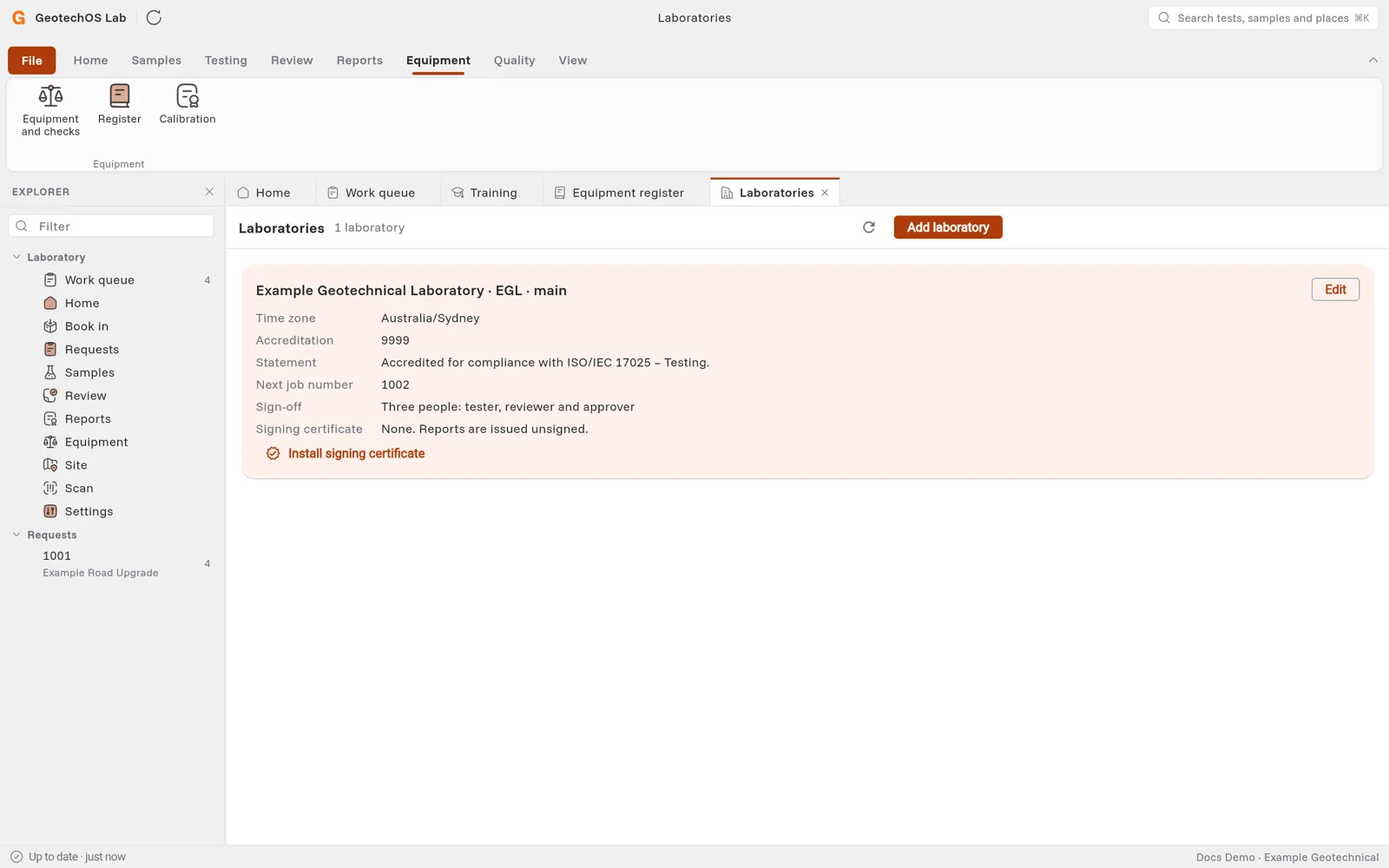
- Click File › Options › Laboratories.
- Find the laboratory and click Edit.
- Change what you need:
- Name, Code and Time zone.
- Accreditation number and Accreditation statement. Reports print them.
- Next job number. The next job you book takes this number. Then jobs count up.
- The reviewer may also approve. Turn this on for a laboratory of two people.
- Main laboratory. Book in selects this laboratory first.
- Click Save.
Note: The person who did a test can never review or approve it, even with The reviewer may also approve turned on.
Install the report-signing certificate
Lab signs each issued report with your laboratory's certificate, so the client can check that the report is yours and is not changed. Without a certificate, Lab issues reports unsigned.
You need a certificate file (.p12 or .pfx) and its passphrase. Only an administrator can install it.
- Click File › Options › Laboratories.
- Click Install signing certificate.
- Select the certificate file.
- In Passphrase, type the passphrase that the certificate was exported with.
- Click Install. The page shows who the certificate is issued to and when it expires.
To change to a new certificate, click Replace signing certificate. Lab keeps the old one on record.
Caution: Replace the certificate before it expires. Lab does not issue a report with an expired certificate.
Choose the tests you run
- Click File › Options › Tests you run.
- Select or clear the methods. See Set up your laboratory.
- Click Done.
Keep standard text
Standard text is wording that you type often, for example Sample received in a split bag. People pick it when they type a remark or a comment, also with no signal.
- Click File › Options › Standard text.
- Click New.
- In Goes into, select where the text is used, for example a report remark.
- Type a short Name and the Text.
- Click Save.
To stop offering a text, pick it, click Edit and turn off Offered.