
Plan the week on the planner board
Use the GeotechOS Lab planner board to give tests to people on days, see CBR soaks and cylinder ages by the clock, and see reports and checks that fall due.
Applies toWindows and macOSWeb browser
The planner board shows a week, with your people down the side. You drag tests onto a person and a day. Planning is optional: a technician can start a ready test that is not planned.
Open the planner
Click Testing › Planner. On a Sunday, the planner opens on the week that starts the next day.
- Click < and > to go to the previous or next week.
- Click This week to go back to the current week.
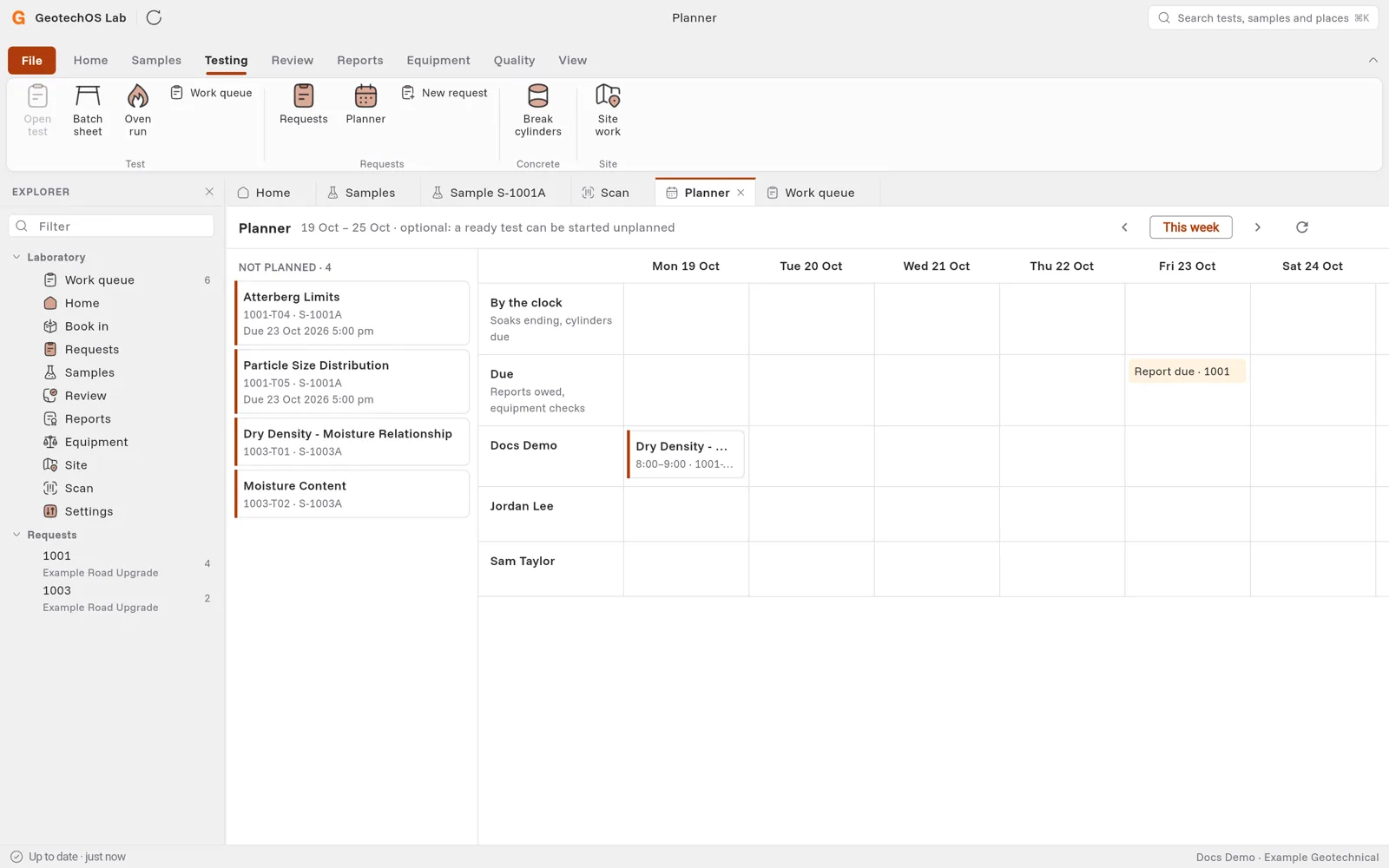
The rows
| Row | What it shows |
|---|---|
| By the clock | CBR soaks that end and concrete cylinders that reach their age, on their day. |
| Due | Reports owed on jobs, equipment checks and training that lapse, on their day. |
| One row for each person | The tests planned for that person, with their times. |
Plan a test
- Find the test under Not planned at the left.
- Drag it onto a person and a day. Lab puts it after the tests that the person already has that day.
Cells where the test cannot go are grey while you drag, for example a day that is past, or a person who is not authorised for the method. If Lab cannot plan the test, for example because equipment is booked, it says why.
To move a planned test, drag it to another cell. It keeps its length.