
Requests and the job page
Find a job in GeotechOS Lab, follow its tests, samples and reports on the job page, keep its docket and photos, and cancel a job booked by mistake.
Applies toWindows and macOSWeb browser
Each job that you book in has a page. It shows the tests, the samples, the reports and the papers of the job in one place.
Find a job
- Click Home › Requests, or press Ctrl+6. The list shows each job with its project, status, due date and number of tests. Type in the search box to find a job by its number, client reference or project.
- Or click the job under Requests in the explorer.
Double-click a job to open its page.
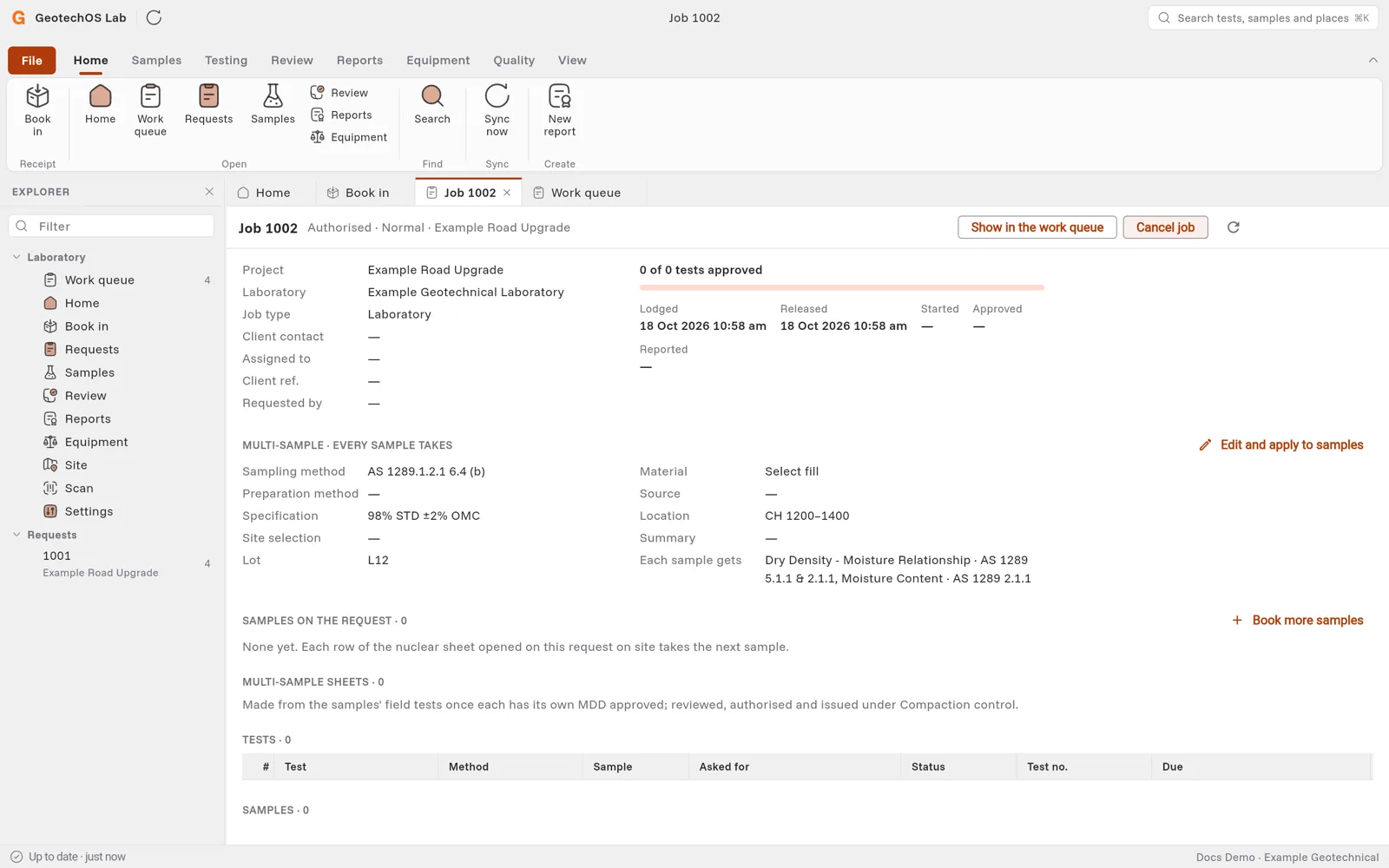
What the job page shows
| Part | What it shows |
|---|---|
| Top | The project, laboratory, job type, client contact, client reference and who requested it. |
| Progress | How many tests are approved, and when the job was lodged, released, started, approved, reported and when it is due. |
| Tests | Each test with its method, sample, what the client asked for (for example Soak 4 days), status and test number. A test that waits for another test says Waits for …. |
| Samples | Each sample of the job. Click Open to see the sample. |
| Reports | The reports made from the job. To file a report from another laboratory, click Add another laboratory's report. |
| Papers | The docket, photos and letters. Click Add a docket, photo or letter to keep a file with the job. |
To see only this job's tests in the work queue, click Show in the work queue.
Cancel a job
Cancel a job that was booked by mistake.
- Open the job.
- Click Cancel job.
- Type the reason.
- Click Continue.
Lab cancels each test of the job and releases its samples. The job stays on record with the status Cancelled.