
The Lab desktop workspace
Learn the GeotechOS Lab desktop workspace on Windows, macOS or the web, with the ribbon, the explorer, document tabs, the inspector and search.
Applies toWindows and macOSWeb browser
The desktop workspace is Lab on a computer. It is made for the office: booking in work, planning, reviewing results and issuing reports.
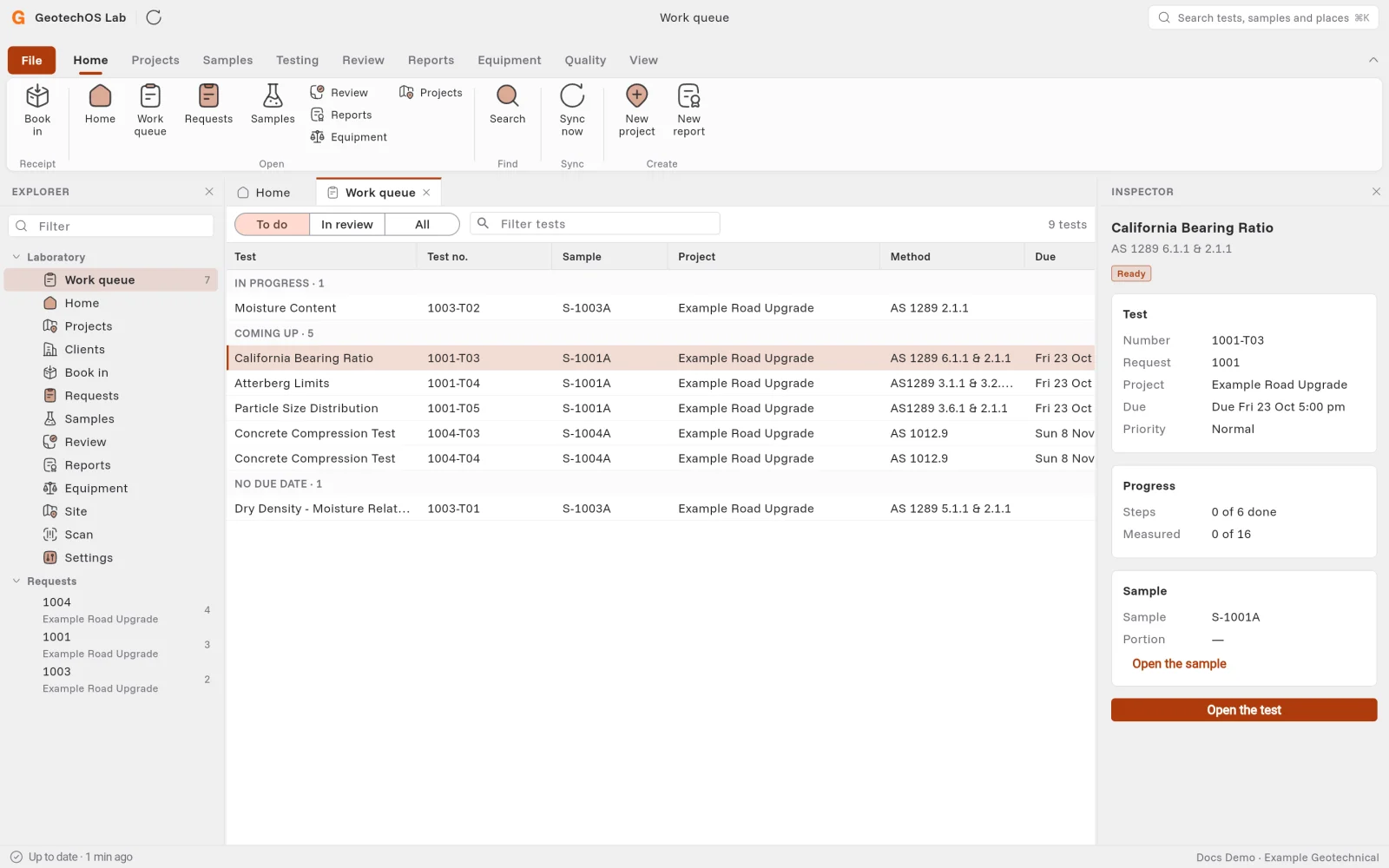
The parts of the window
| Part | What it does |
|---|---|
| Ribbon | The commands, in tabs: Home, Projects, Samples, Testing, Review, Reports, Equipment, Quality and View. File has your options and your account. |
| Explorer | The places of your laboratory at the left, for example Work queue, Projects, Clients, Book in and Requests. Under Requests, each open job shows with its number of tests. Click a job to show only its tests. |
| Document tabs | Each place, test, sample or report opens in a tab. You can have many tabs open. |
| Inspector | Shows the test or sample that you pick in a list. To show or hide it, click View › Inspector. |
| Status bar | Shows if Lab is up to date, what is overdue or due today, and your name and workspace. |
What each ribbon tab holds
| Tab | Commands |
|---|---|
| Home | Book in, Home, Work queue, Requests, Samples, Projects, Search, Sync now, New project, New report |
| Projects | Projects, new project, clients, new client, and the work for a project: book in, earthworks lots, concrete compliance, exports. See Start a project and keep its clients. |
| Samples | Open a sample, receive a sample, the sample register, scan a label |
| Testing | Work queue, requests, new request, planner, break cylinders, batch sheet, oven run, site work |
| Review | The review queue |
| Reports | Reports, new report, concrete compliance, assigned values, compaction control, site lots, activity, turnaround, exports |
| Equipment | Equipment and checks, register, calibration |
| Quality | Training, non-conformances, uncertainty, chemicals, suppliers |
| View | Show or hide the explorer and the inspector |
| File | Info, Options (Settings, Laboratories, Tests you run, Standard text) and Account (check for updates, sign out) |
Find anything
- Click the search box at the top right, or press Ctrl+K (⌘K on a Mac).
- Type a test number, a sample number, a job number or the name of a place.
- Click the result. Lab opens it in a tab.
Keyboard shortcuts
On a Mac, use ⌘ for Ctrl.
| Keys | What they do |
|---|---|
| Ctrl+0 | Home |
| Ctrl+1 | Work queue |
| Ctrl+2 | Samples |
| Ctrl+3 | Review |
| Ctrl+4 | Reports |
| Ctrl+5 | Equipment |
| Ctrl+6 | Requests |
| Ctrl+B | Book in |
| Ctrl+N | New request |
| Ctrl+K | Search |
| Ctrl+R or F5 | Sync now |
| Ctrl+W | Close the tab |
| Ctrl+Tab | Go to the next tab |
| Ctrl+[ | Go back |