
Start a project and keep its clients
Start a project in GeotechOS Lab from its site address, show it on a map, and keep its client, the client's people and who gets its reports.
Applies toWindows and macOSWeb browser
Each job that the laboratory books in is for a project, for example Example Road Upgrade. A project has a site address, a place on the map and usually a client. This page tells you how to start a project, correct its place on the map, and keep its client's details and people.
Projects and clients are shared with the rest of GeotechOS. A project that you start in Lab also shows in Borehole Logging, Field and the CRM.
Before you start
- You need an internet connection. Lab gives a new project its number at once, so it cannot start a project offline.
- To start projects and add clients, your role needs the All Projects and Accounts and contacts permissions. If you cannot see New project or New client, ask your administrator.
Open the projects
- Click Projects › Projects, or press Ctrl+7 (⌘7 on a Mac).
- To find a project, type its number, name or address in the search box.
The map shows the open projects. Click a pin or a row to show the project at the right: its address, its client, the people who get its reports and a map of the site.
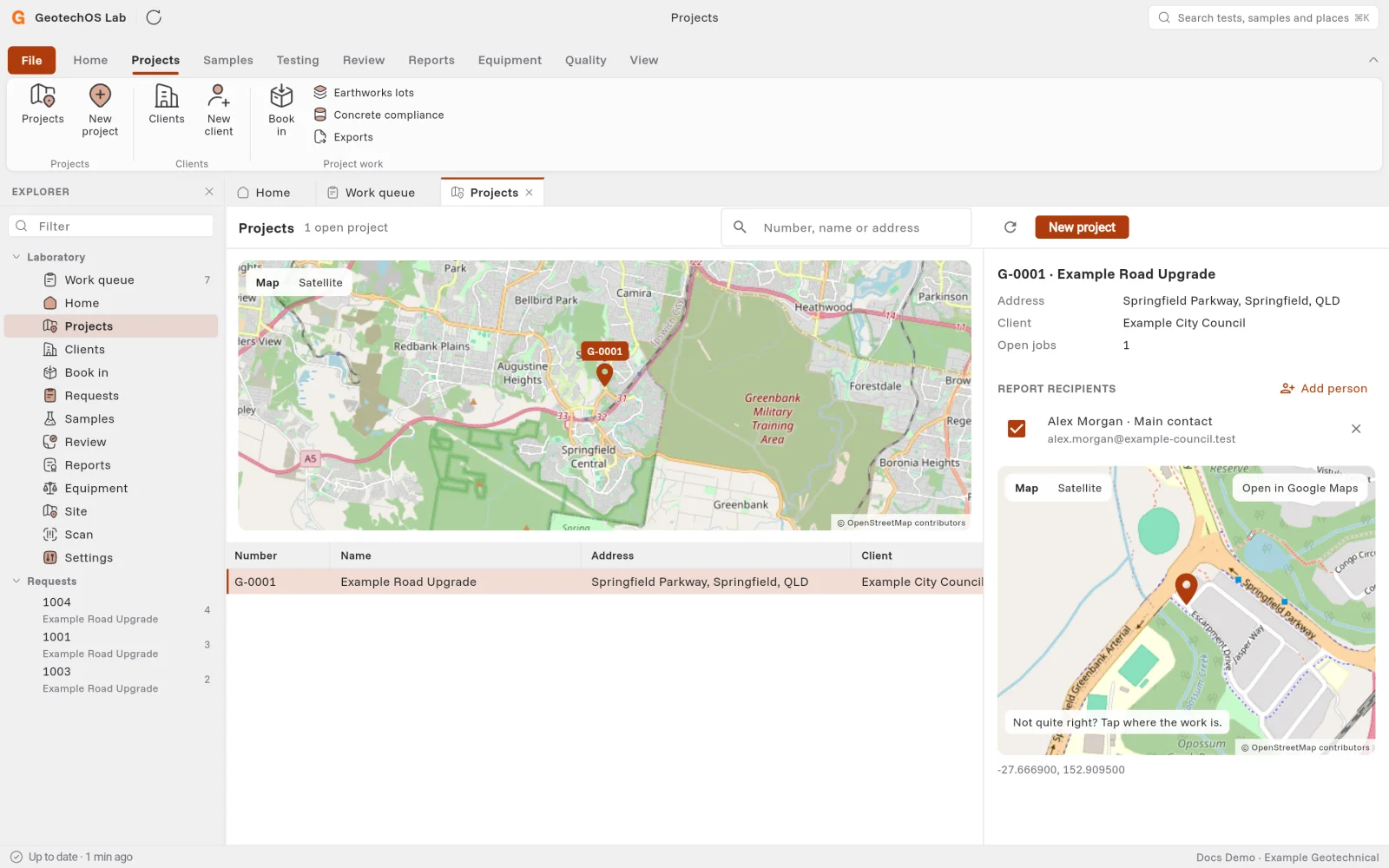
To change the map, click Map for a street map or Satellite for an aerial photo. To get directions to the site, click Open in Google Maps.
Start a project
- Click Projects › New project. You can also click New project… on the Book in page.
- In Site address, type the start of the address. A list of addresses from Google shows.
- Click the correct address. Lab fills in the Suburb, State and Postcode and shows the site on a map.
- If the pin is not where the work is, click the correct place on the map. The pin moves there.
- Optional: in Project name, type a name, for example Example Station Car Park. If you leave it empty, the project gets the site address as its name.
- Optional: in Client, type a part of the client's name or ABN. Click the client in the list.
- Click Create project.
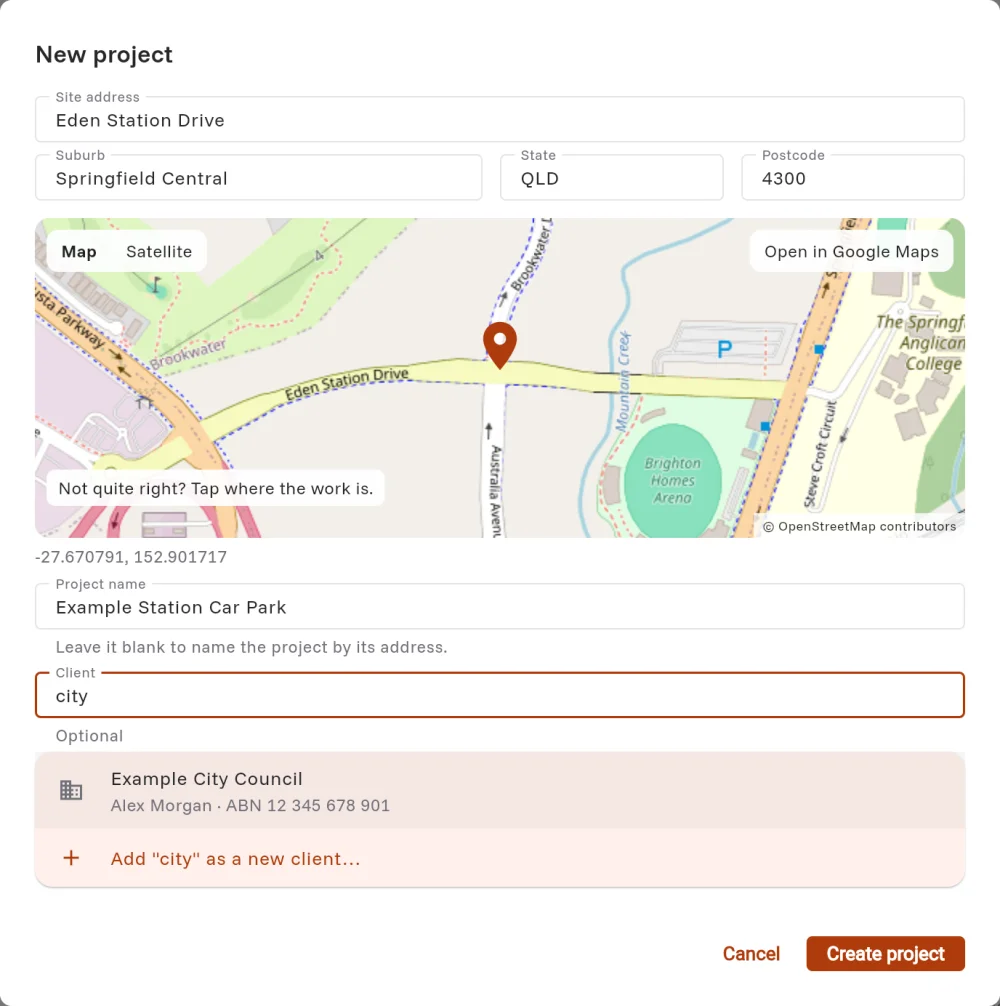
Lab gives the project its number, for example G-0002, and opens it on the Projects page.
Note: If the client is not in the list, click Add "…" as a new client… under the list. See Add a client.
Move a project's pin
Sometimes the address is not exactly where the work is, for example on a long road. Move the pin to the correct place. The pin also helps the field staff find the site.
- On the Projects page, click the project.
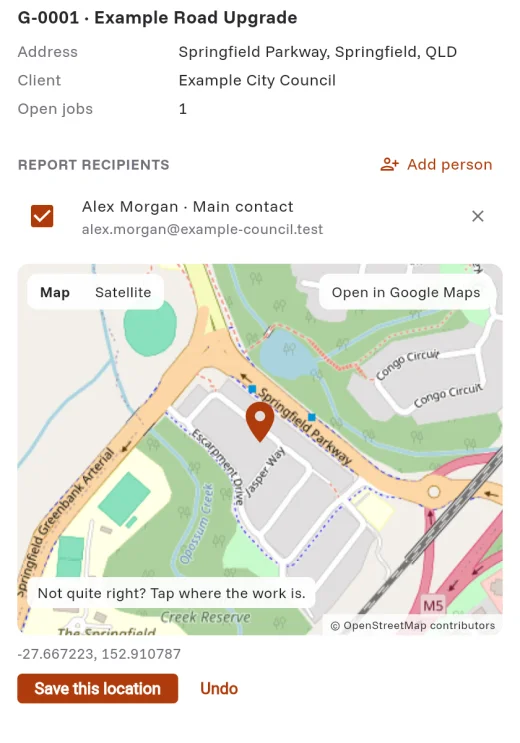
- On the map at the right, click where the work is. The pin moves, and Save this location shows.
- Click Save this location. To go back to the old place, click Undo.
Who gets the project's reports
The people under Report recipients are people who work at the project's client. When you email a report the first time, Lab copies them in (Cc). The job's client contact is under To. You can change the addresses before you click Send. See Issue and email a report.
- On the Projects page, click the project.
- Click Add person. A list of the client's people shows.
- Click a person. The person shows with a tick.
- To stop sending reports to a person and keep them on the project, clear their check box.
- To take a person off the project, click × next to their name.
Note: A person with no email address cannot get reports. Add their email address on the Clients page.
Open the clients
- Click Projects › Clients, or press Ctrl+8 (⌘8 on a Mac).
- To find a client, type a part of its name, ABN, email address or phone number in the search box.
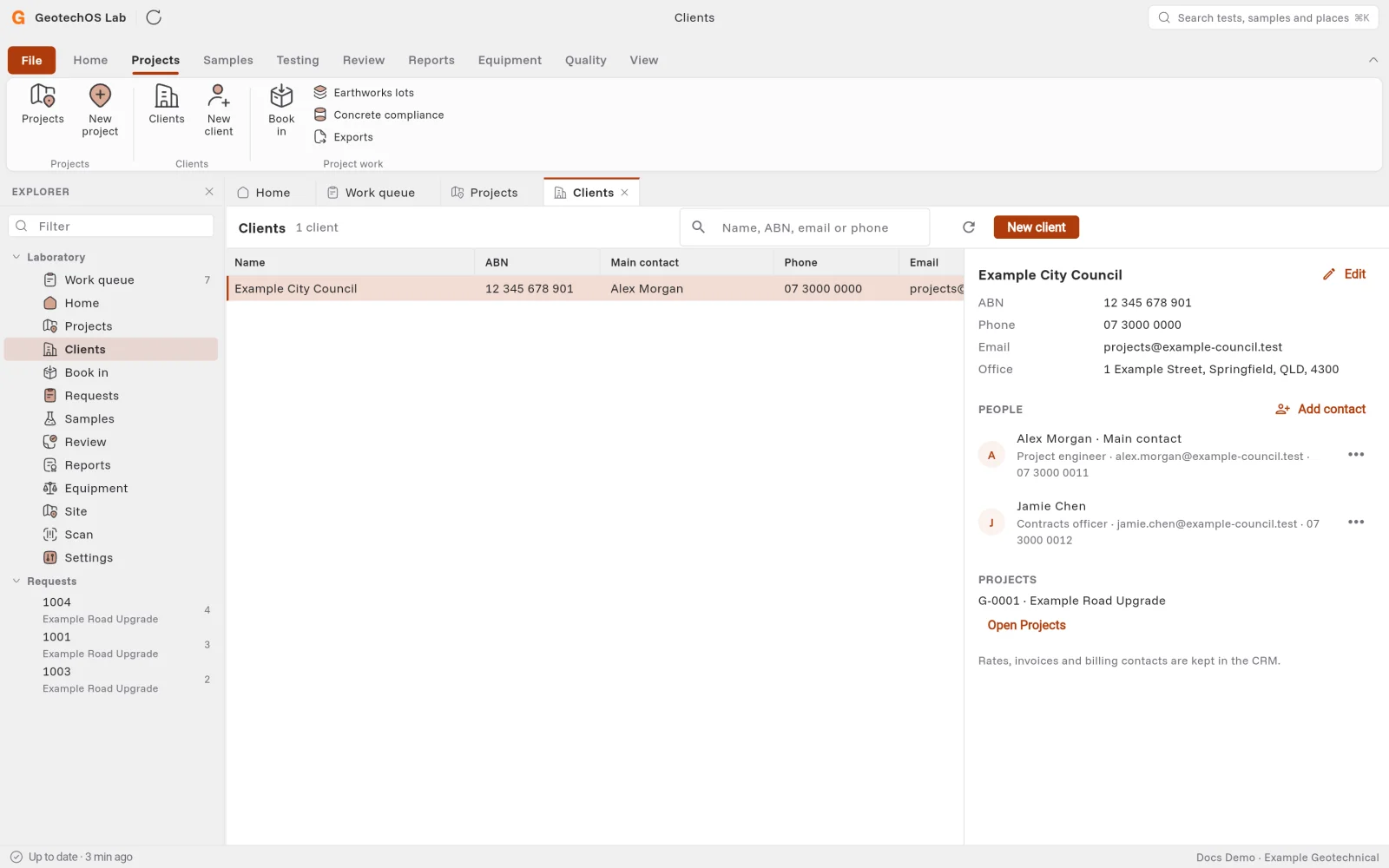
- Click a client. Its details, its people and its projects show at the right.
Add a client
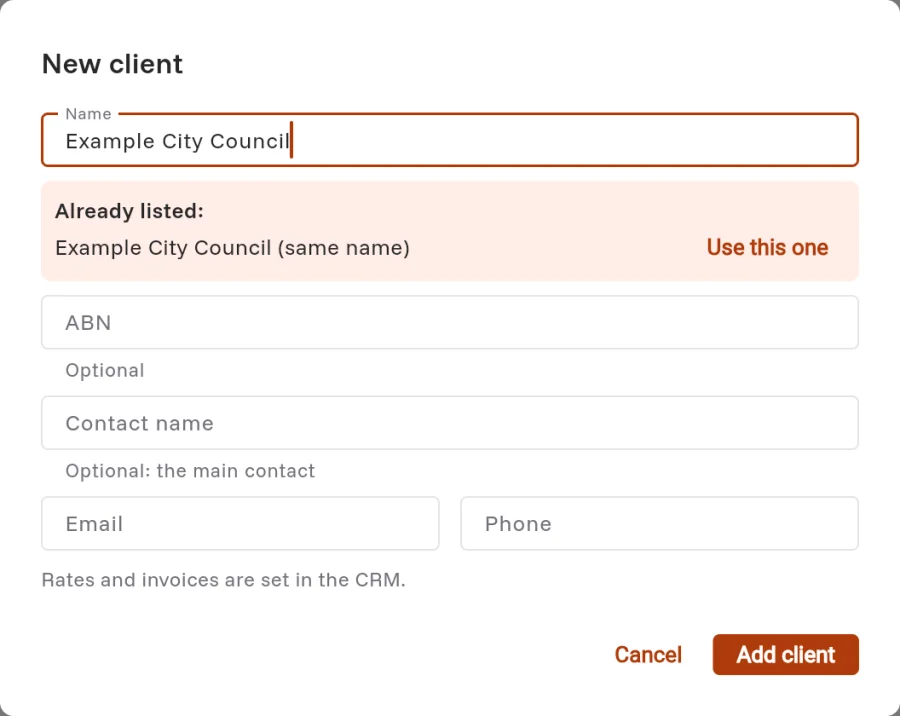
- Click Projects › New client.
- In Name, type the client's name, for example Example City Council.
- Optional: type the ABN, the name of the main contact, and their Email and Phone.
- Click Add client.
When you type a name or an ABN, Lab looks for clients that are like it. If it finds one, it shows Already listed. To use that client and not make a second one, click Use this one.
Change a client's details
- On the Clients page, click the client.
- Click Edit.
- Change the fields, for example the phone number or the office address. Name is the name that lists and reports show. Legal name is the registered name.
- Click Save.
Keep the client's people
Each person at a client has a name, a position, an email address and a phone number. One person can be the Main contact: the person to call first.
To add a person:
- On the Clients page, click the client.
- Click Add contact.
- Type the Name, the Position, the Email and the Phone.
- To make the person the main contact, select Main contact.
- Click Add contact.
To change a person, click ⋯ next to their name, then click Edit.
When a person leaves the client, click ⋯ next to their name, then click No longer works here. Lab keeps their record with the date, so older reports still show who got them.
Note: Rates, invoices and billing contacts are kept in the CRM, not in Lab.