
Samples, labels and custody
Find a sample in GeotechOS Lab, print its label, scan labels to open samples, store and hand over samples, split off portions and read the chain of custody.
Applies toWindows and macOSWeb browserPhone and tablet
Lab keeps a record of each sample from the time it arrives to the time it is disposed of. Each step is in the sample's chain of custody, which cannot be changed.
Find a sample
- Click Samples › Sample register. The list shows each sample with its material, project, status, condition, quantity and when it was received. Type a sample number or material in the search box.
- Or scan its label. See Scan a label.
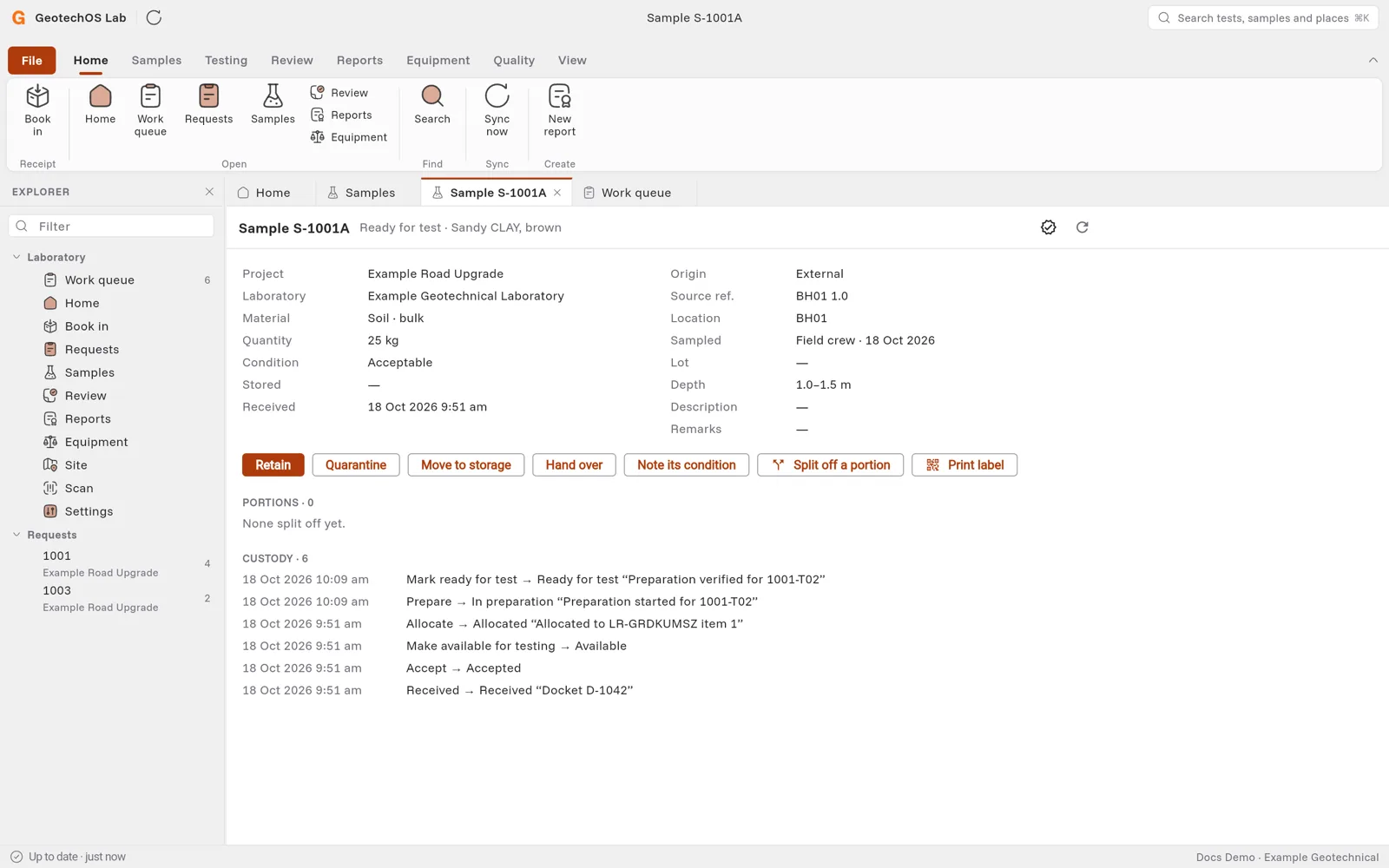
Double-click a sample to open its page.
Print a sample's label
- Open the sample.
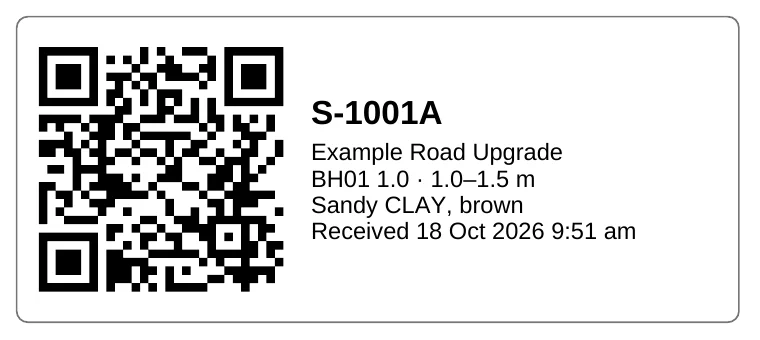
- Click Print label. Lab opens a PDF with the label.
- Print it and stick it on the bag or container.
The label has a QR code, the sample number, the project, where it was taken and its description.
Scan a label
- Computer: click Samples › Scan a label. Scan the label with a USB scanner, or type the sample number, then press Enter.
- iPad: tap the scan icon at the top right.
- Phone: tap Scan.
Tap Scan with the camera to use the device's camera. Lab opens the sample, the portion or the specimen.
Move a sample through custody
The buttons on the sample page show the next steps that are allowed. The first button is the usual next step.
| Button | What it does |
|---|---|
| Accept | Accept a sample that came in, after you look at it. |
| Make available for testing | Make it ready to be allocated to tests. |
| Quarantine | Hold it back. Type why. |
| Move to storage | Record where it is kept, for example Soils store, shelf B3. |
| Hand over | Record that you gave it to another person or place. |
| Note its condition | Record its condition now. |
| Retain | Keep it after testing. |
| Dispose | Record that it was thrown out. Type why. |
Each step shows under Custody with its time. A tick icon at the top of the page shows that the custody record checks out.
Split off a portion
To test part of a sample on its own, for example after preparation:
- Click Split off a portion.
- Type the Quantity and select the unit.
- In For, type what the portion is for, for example Atterberg limits.
- Click Add the portion.
The portion shows under Portions with its own label.
Receive a sample without a job
Usually you receive samples with Book in. To receive a sample with no tests yet, click Samples › Receive a sample.