
Set up your laboratory
Set up a new laboratory in GeotechOS Lab with the setup checklist. Add the laboratory, choose the tests you run, then equipment, people and a first job.
Applies toWindows and macOSWeb browser
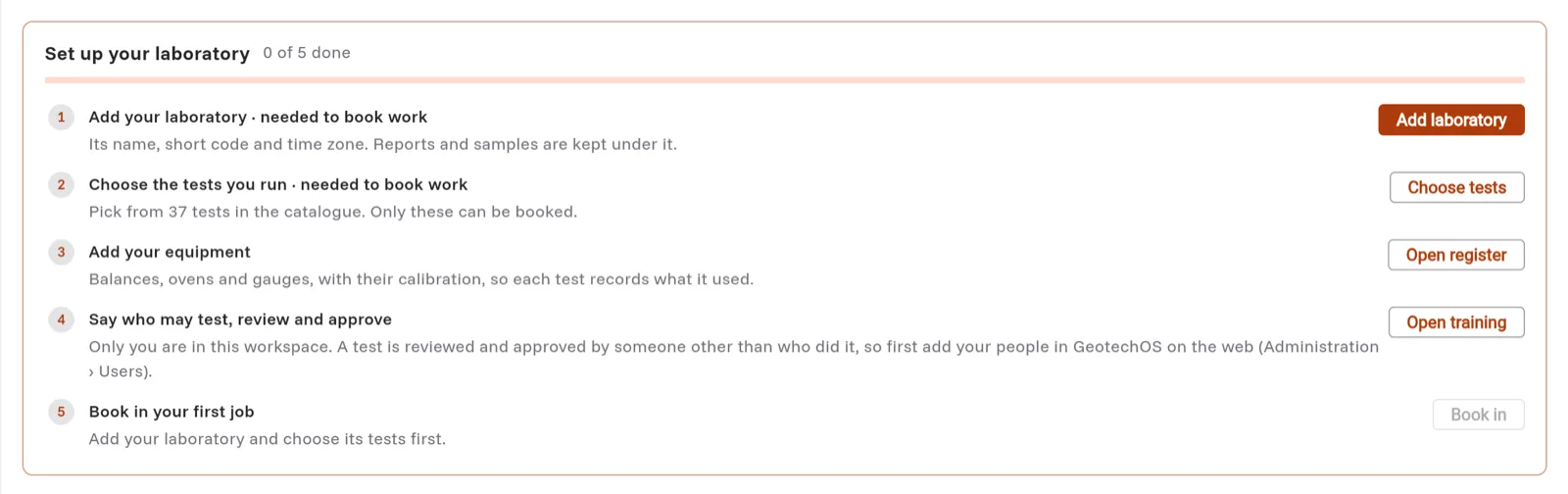
A new laboratory has a setup checklist on Home. It has five steps. You need the first two before you can book in work.
Before you start
- Use Lab on a computer, or in a wide web browser window.
- You need administrator access in GeotechOS. The first person in a new workspace has it.
Step 1: Add your laboratory
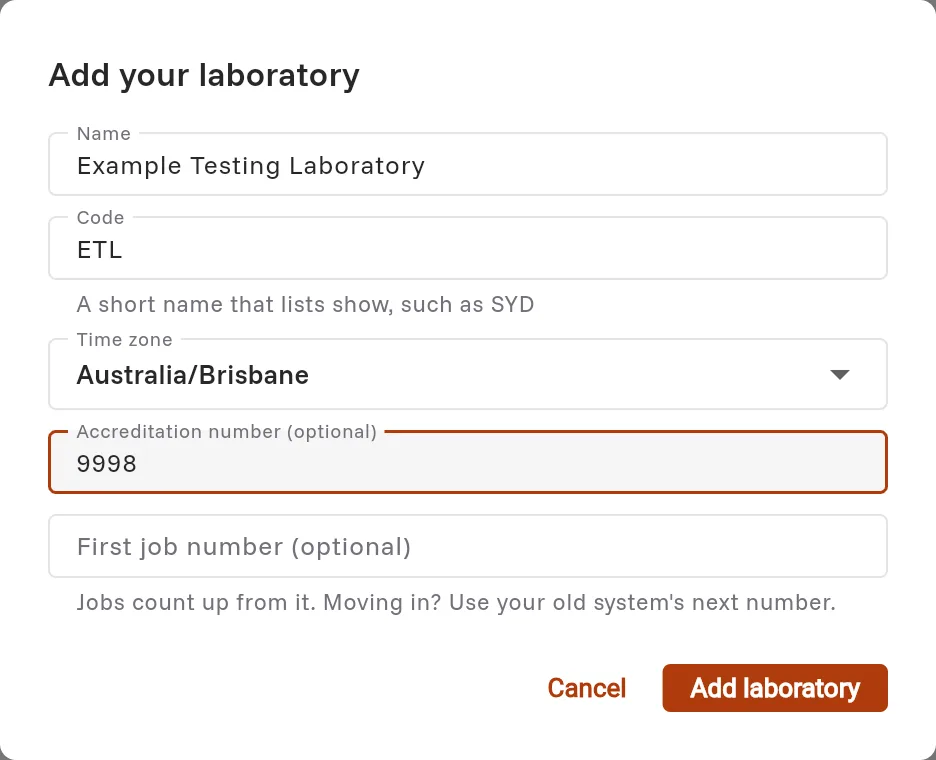
- On Home, click Add laboratory.
- In Name, type the name of the laboratory, for example Example Geotechnical Laboratory.
- In Code, type a short name, for example EGL. Lists show this code.
- In Time zone, select the laboratory's time zone.
- In Accreditation number, type your NATA accreditation number, if you have one.
- In First job number, type the next job number from your old system, if you move from one. If you leave it blank, the first job is 1001.
- Click Add laboratory. Step 1 shows a tick.
Step 2: Choose the tests you run
Only the tests you choose can be booked.
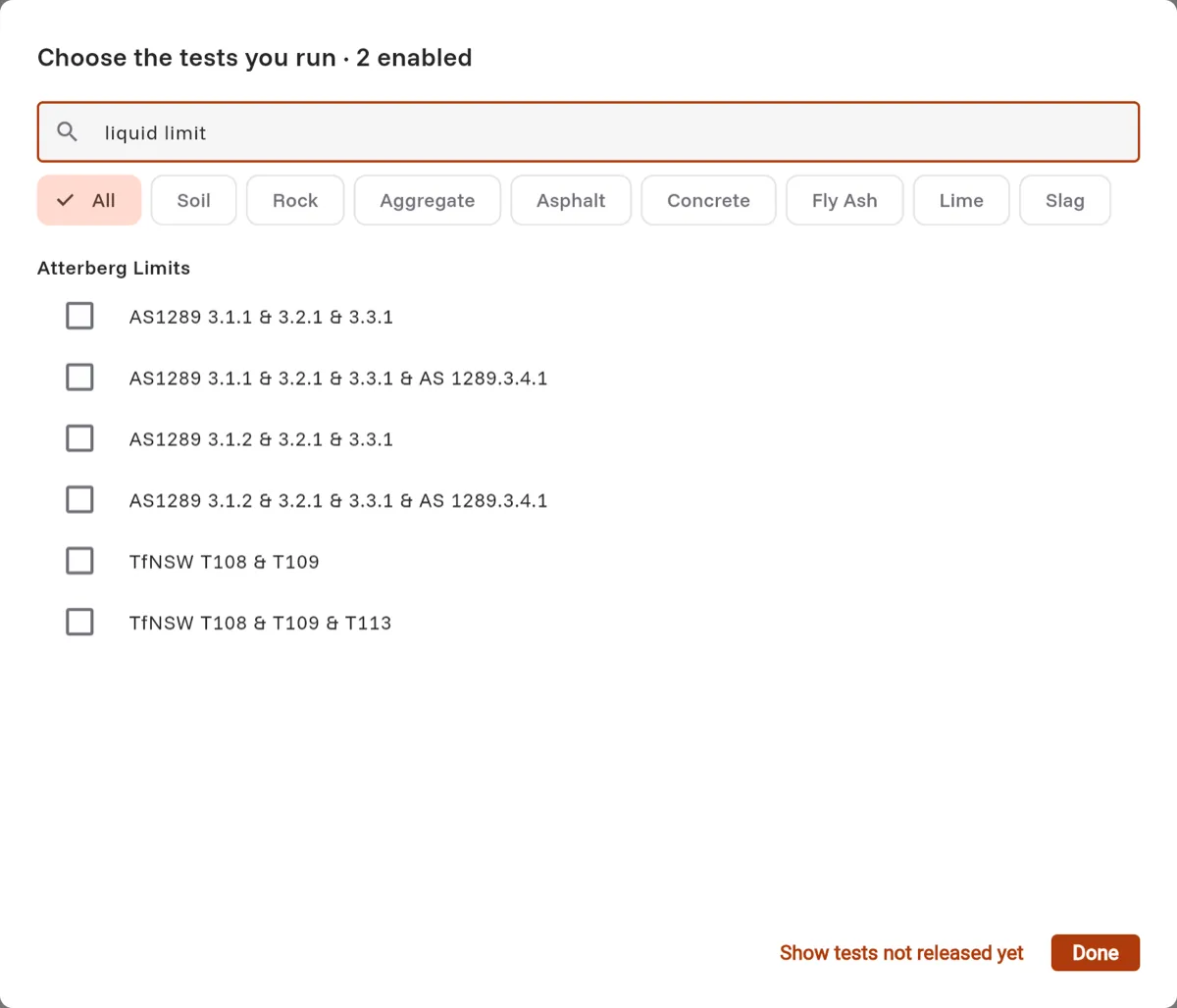
- Click Choose tests.
- Type in the search box to find a test. You can type a test name (moisture), an everyday name (liquid limit, PSD, MDD, CBR) or a method number (AS 1289.5.1.1, T117).
- To show only one material, click Soil, Rock, Aggregate, Asphalt or another material.
- Select the check box of each method that your laboratory runs. Lab saves each change at once.
- Click Done.
Note: To add or remove tests later, click File › Options › Tests you run.
When steps 1 and 2 are done, the checklist folds to one line, Finish setting up. Click Show to open it again.
Steps 3 to 5
- Add your equipment. Click Open register. See Add equipment.
- Say who may test, review and approve. Click Open training. See People and authorisations. This step gets its tick when at least one person may do a test, one may review and one may approve. If one of them is missing, the step tells you who to authorise.
- Book in your first job. Click Book in. See Book in samples and tests.
When all five steps are done, the checklist goes away.