
People and authorisations in Lab
Add people to GeotechOS, give them laboratory access, and authorise each person in GeotechOS Lab to do tests, review results or approve them.
Applies toWindows and macOSWeb browser
Each result is checked by more people than the one who did the test. So a laboratory needs at least three people: one to do the test, one to review the result, and one to approve it. A laboratory of two can let the reviewer also approve. See Laboratory settings.
Step 1: Add the people
You add people to your workspace in GeotechOS on the web.
- In a web browser, open GeotechOS and go to Administration › Users.
- Click New user.
- Type the person's First name, Last name, Email and Position.
- Click Save Team Member.
People sign in with their email. They do not need a password.
Step 2: Give them laboratory access
A person needs a role that includes the laboratory.
- On Administration › Users, click Manage roles.
- Click New role and type a name, for example Laboratory staff.
- For Laboratory, select View and Edit.
- For Release laboratory work, select View and Edit, if the person may put booked work on the bench.
- For All Projects, select View.
- Click Save role.
- Open each person with Manage and select the role in Role.
Note: A person with no role sees "Your role does not let you see Laboratory" in Lab.
Step 3: Authorise them in Lab
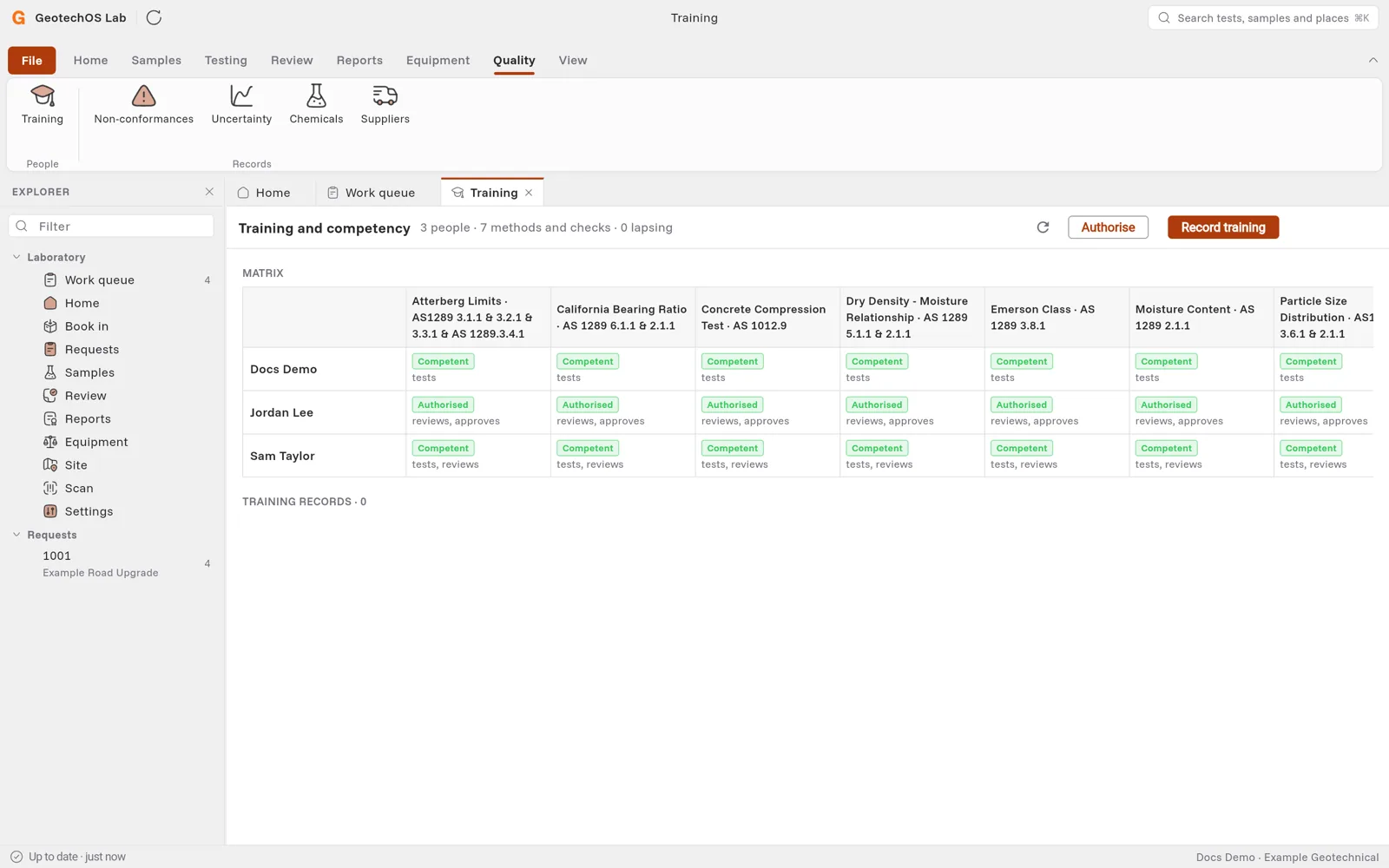
- In Lab, click Quality › Training.
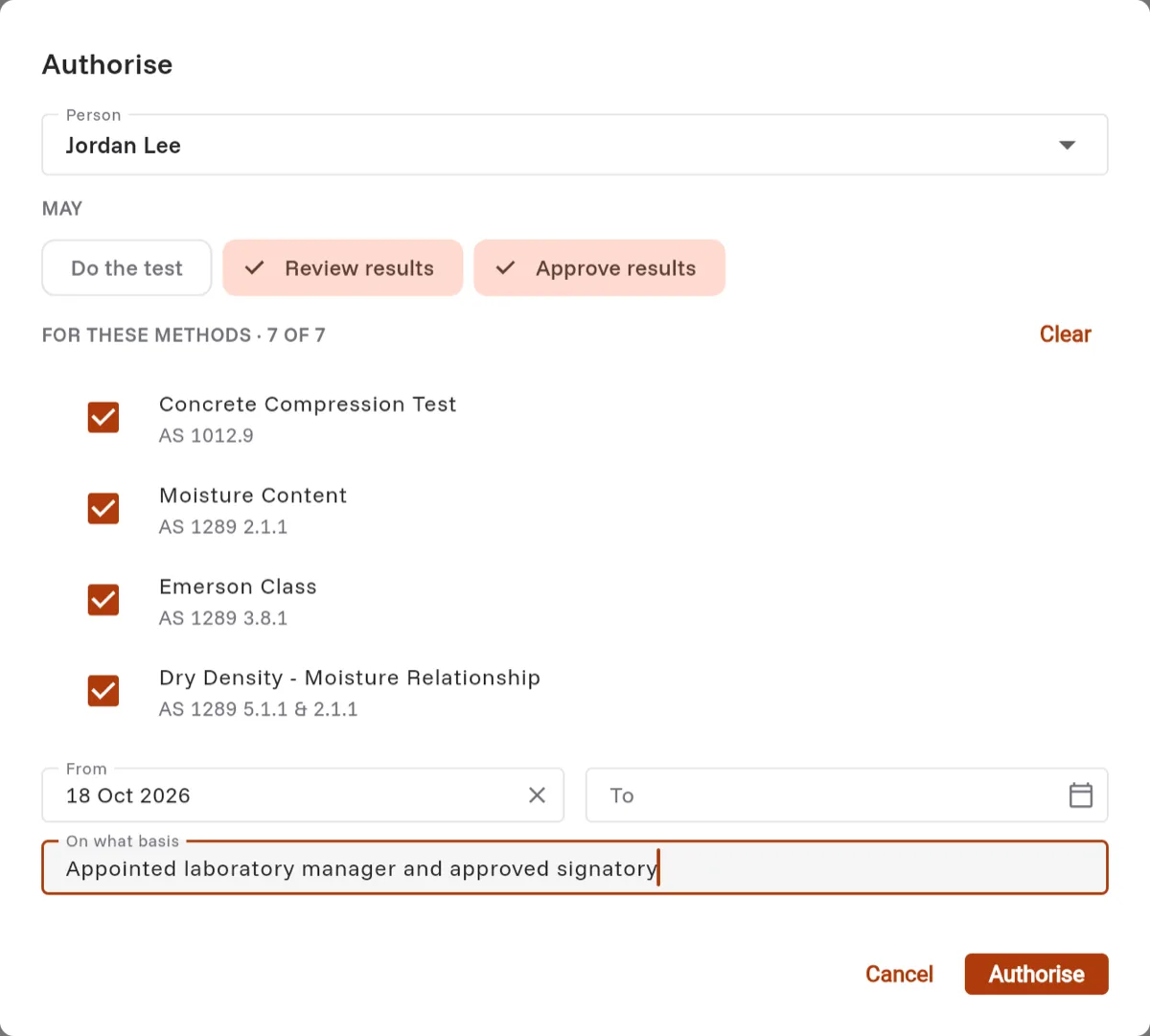
- Click Authorise.
- In Person, select the person.
- Under May, select what they may do: Do the test, Review results or Approve results.
- Select the methods, or click All methods.
- In From, check the date. In To, select a date if the authorisation lapses.
- In On what basis, type why, for example Appointed laboratory manager and approved signatory.
- Click Authorise. The person shows in the matrix, with what they may do for each method.
Record training
When a person completes training in a method, record it:
- Click Quality › Training › Record training, or click the person's cell in the matrix.
- Select the Person, the Level reached and what they were trained In.
- Select Trained on, Lapses on and Trained by.
- Select the tests that are the evidence, if Lab shows them.
- If the level is Competent, select Authorise them to perform it.
- Click Save.