
Sign issued reports with your laboratory's certificate
Install a report-signing certificate in GeotechOS Lab, so each issued PDF shows that your laboratory made it and that nobody changed it.
Applies toWindows and macOSWeb browser
GeotechOS Lab can sign each report that it issues with your laboratory's digital certificate. Your client opens the PDF and sees that your laboratory signed it, and that nobody changed it after it was issued.
What a signed report gives you
- Who made it. The PDF viewer shows the name on your certificate, for example your company's name.
- No changes after issue. If a person changes the PDF, the viewer shows that the signature is not valid.
- Forms stay usable. The signature lets a reader fill in form fields, but not change the report.
The signature is invisible on the page. The report already prints the approved signatory and the accreditation. The signature is in the PDF file itself.
Note: A signed report is not a different report. It has the same results, layout and approvals as an unsigned report.
Before you start
You need:
- A document-signing certificate for your laboratory, as one file in .p12 or .pfx format (PKCS #12). The file must be 256 KB or smaller.
- The passphrase that the certificate was exported with.
- A GeotechOS administrator account. Only an administrator can install a certificate.
- Lab on a computer, or in a web browser. You cannot install a certificate on an iPad or a phone.
To get a certificate, ask a certificate provider for a document-signing certificate in your laboratory's name. Ask for a certificate that Adobe Acrobat trusts. Then Acrobat shows the signature as valid, with no more steps for your client.
Caution: Keep the certificate file and its passphrase safe. A person with both can sign PDFs in your laboratory's name.
Install the certificate
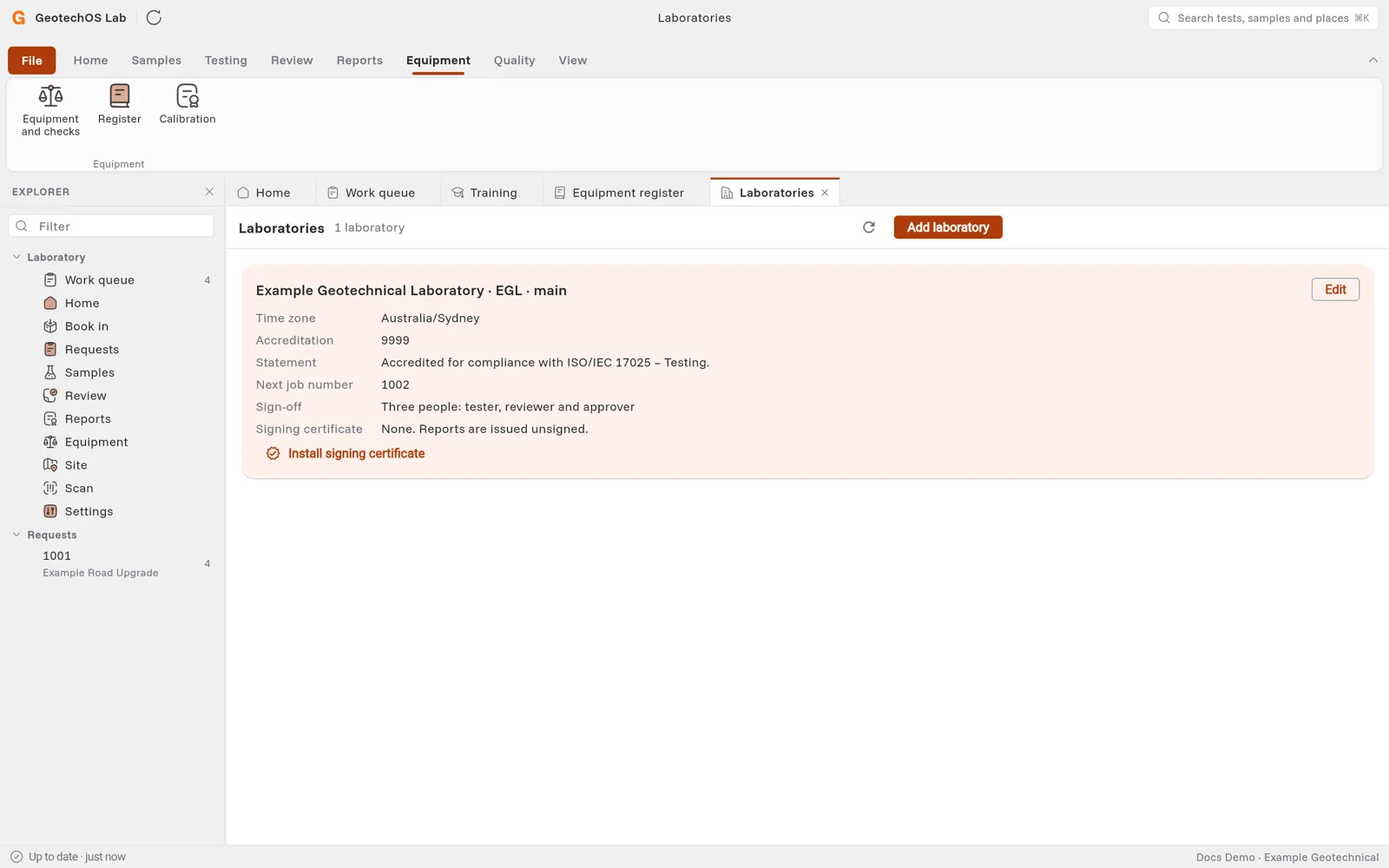
- Click File › Options › Laboratories.
- Find your laboratory. Under Signing certificate, the page shows None. Reports are issued unsigned.
- Click Install signing certificate.
- Select the certificate file.
- In Passphrase, type the passphrase that the certificate was exported with.
- Click Install.
The page shows who the certificate is issued to and when it expires. For example: Example Geotechnical Pty Ltd · valid to 30 Jun 2027. From now on, Lab signs each report that it issues for this laboratory.
Lab keeps the certificate encrypted on the server. It does not show the certificate or the passphrase again.
What changes when you issue a report
When you click Issue report, Lab makes the PDF, signs it and keeps it. See Issue, email and amend a report.
- The issue shows Signed.
- The PDF that you open, download and email is the signed PDF.
- Lab also keeps the PDF as it was before signing. To open it, click the issue, then Unsigned copy.
- When you email the issue, the attachment shows Signed.
Reports that you issued before you installed the certificate stay unsigned. To give a client a signed copy, amend the report and issue it again. See Amend a report.
How your client checks the signature
- Open the PDF in Adobe Acrobat or Acrobat Reader.
- Look at the blue bar at the top of the page. It shows that the document is certified, and by whom.
- To see more, click Signature Panel.
If a person changes the PDF after it was issued, Acrobat shows that the certification is not valid.
Note: Some PDF viewers, for example the viewer in a web browser, do not show signatures. The signature is still in the file.
Replace the certificate
A certificate is valid for a fixed time, often one to three years. Replace it before it expires.
- Get the new certificate file and its passphrase.
- Click File › Options › Laboratories.
- Click Replace signing certificate.
- Select the new file and type its passphrase.
- Click Install.
Lab signs the next report with the new certificate. It keeps the old certificate on record. Reports signed with the old certificate stay valid.
Caution: When the certificate has expired, Lab does not issue reports for the laboratory. A report signed with an expired certificate shows as not valid, which is worse than unsigned. Replace the certificate, then issue the report again.
If something goes wrong
| Message | What to do |
|---|---|
| The certificate could not be opened; check the file and its passphrase. | Make sure that you selected the .p12 or .pfx file, and type the passphrase again. Passphrases are case-sensitive. |
| That certificate expired on … | The file holds an expired certificate. Ask your provider for a new one. |
| The laboratory's signing certificate expired on … Replace it before issuing. | Install a new certificate, then click Issue report again. |
| The signing service could not be reached. Try again shortly. | Wait a minute, then try again. If it continues, contact GeotechOS support. |
| Only a GeotechOS administrator can install the signing certificate. | Ask an administrator to install it. |
| The issue does not show Signed | Look under Signing certificate on the Laboratories page. If it shows None, install a certificate. |